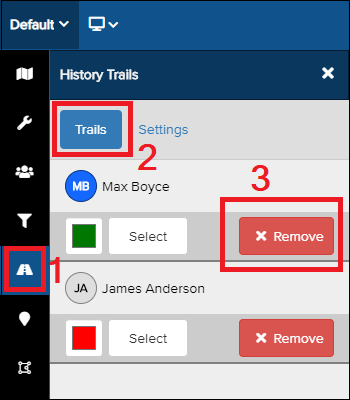
History Trails let you track a user’s movements as a breadcrumb trail.
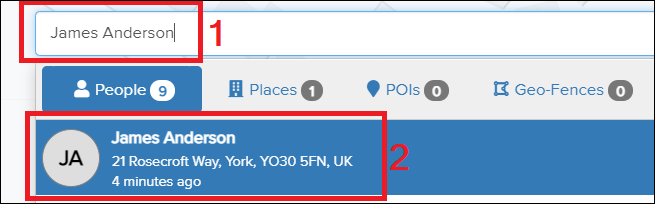
1) Enter the username in the search bar at the top.
2) Choose the user from the drop-down list.
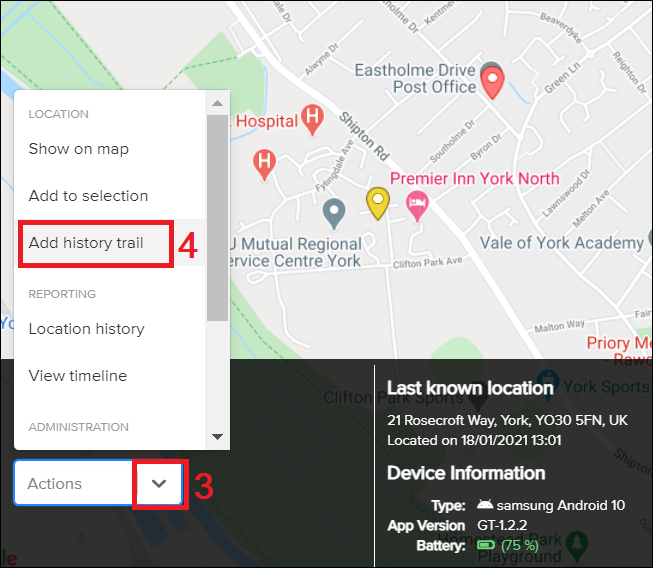
3) From the user details bar at the bottom of the map, click the Actions arrow.
4) From the list, select Add History Trail.
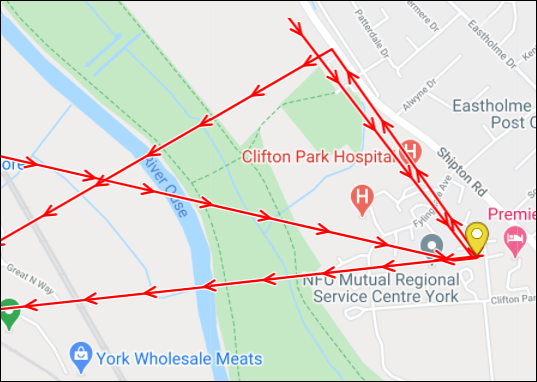
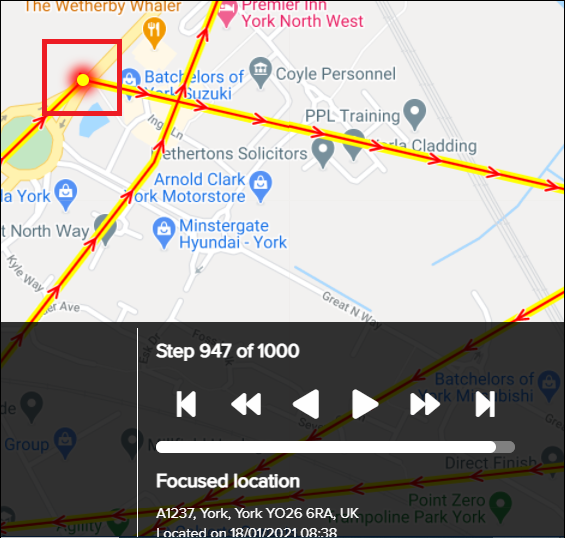
5) The user’s History Trail will now be displayed on the map. Zoom in or out to view the trail. The arrows on the History Trail indicate the direction of travel.
6) Click on a History Trail until it highlights in yellow to view more details. The information at the bottom includes the date and time of the fix and the address of the location.
Use the arrows to navigate through the fixes on the History Trail. Click the X in the bottom right to remove the details for that History Trail.
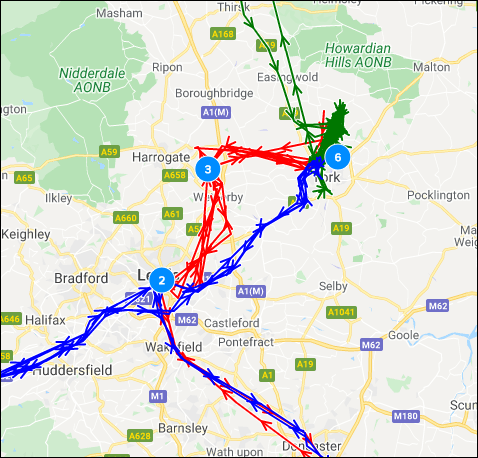
7) You can view multiple History Trails simultaneously by repeating Steps 1 to 4 for other users.
Removing a Trail
1) Click the Road icon.
2) Ensure Trails is highlighted.
3) Click Remove.