Use the Portal to Turn Off Privacy Mode
Depending on your administrative permissions and account configuration, you may have the ability to disable Privacy Mode for a user. When Privacy Mode is active, the user's location pin changes to a shield icon, and a shield also appears next to their initials.
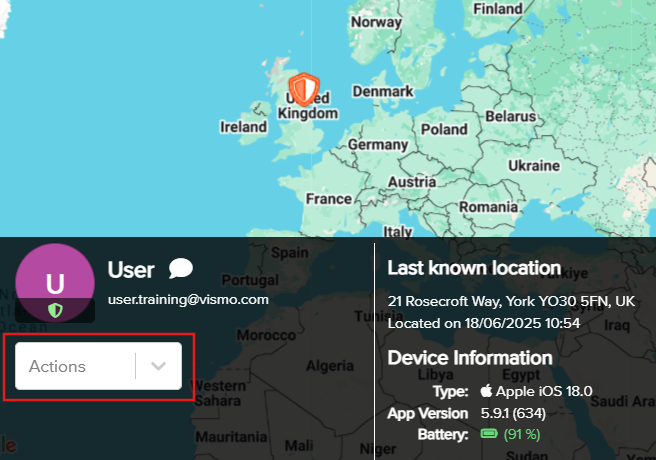
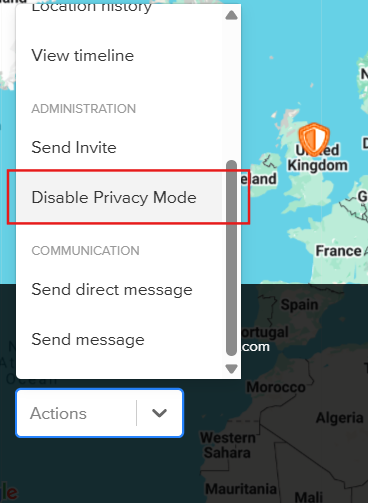
To disable Privacy Mode, search for the user and click Actions in the user’s details bar. From the Actions menu, select Disable Privacy Mode.
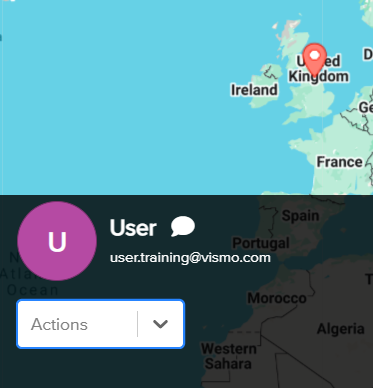
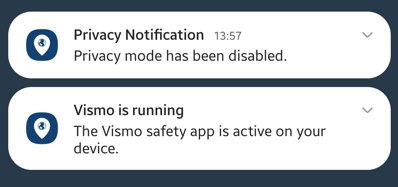
When Privacy Mode is disabled, the user's icon on the map will revert from a shield to a standard location pin, and the shield icon will no longer appear next to their initials. If Privacy Mode notifications are enabled, the user will also receive a notification informing them that Privacy Mode has been disabled on their device.