
Checkpoints are specific physical locations marked with a QR code that can be scanned using the Vismo Locate & Protect app. These are typically placed at key areas such as building entrances and exits, high-risk zones, laboratories, or secure rooms. Scanning a Checkpoint allows users to log their presence at a location, helping to improve visibility, safety, and compliance across an organisation.
Use the steps below to delete a Checkpoint from your Vismo account.
Step-by-Step Instructions
- Go to Account Settings
Navigate to Account Settings > POI Layers. - Select the Relevant POI Layer
Choose the POI layer that contains the Checkpoint you wish to delete.
Click ‘Points’ in the toolbar at the top of the screen.
This will display all POIs in that layer. - Open the POI
Find the POI where the Checkpoint is located.
Click ‘Edit’ in the toolbar to open it. - Access the Checkpoints Tab
In the edit screen, click on the ‘Checkpoints’ tab from the toolbar. Delete the Checkpoint
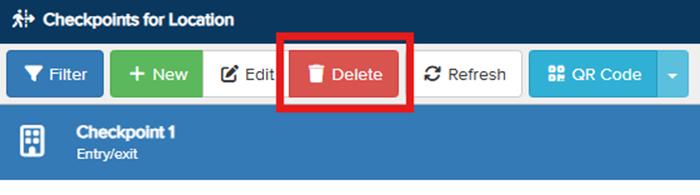
- Highlight the Checkpoint you want to remove.
- Click ‘Delete’ in the toolbar.
- A confirmation message will appear. Click ‘Yes’ or ‘Confirm’ to permanently delete the selected Checkpoint.
Note: Once a Checkpoint is deleted, it cannot be recovered. Ensure you are deleting the correct one.