
Device Configuration allows administrators to configure and personalise the Vismo app on users’ devices. This can be done at the account level, applying the configuration to all users within the account, or at the group level for specific user groups.
Start by deciding whether to set the Theme at the Account Level or Group Level. Then, open the Device Configuration page for the chosen level.
Theme
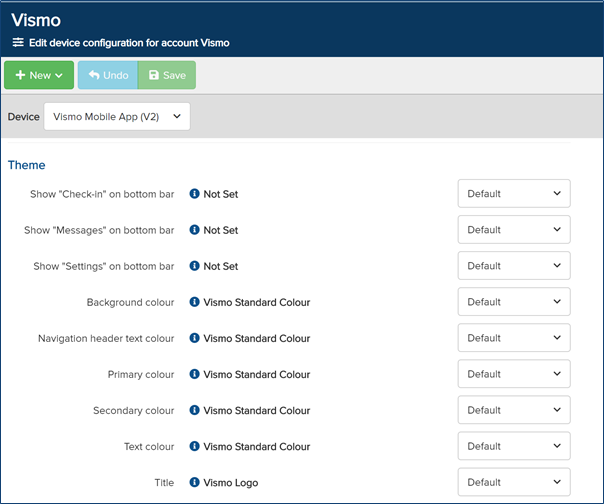
From the Device Configuration page, the Theme section allows administrators to change the app’s theme and colour. There is a range of default settings, all of which can be customised to the preferred theme.
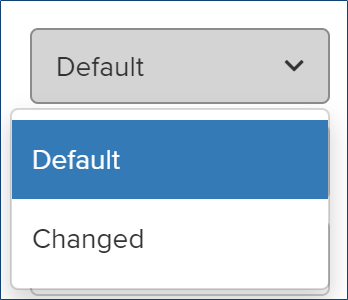
To change any of the theme settings, click on the Default drop-down and select Changed. Then, configure your preferred colours and theme settings in the appropriate fields.
The Theme Settings
-
Show "Check-in" on Bottom Bar – Displays the check-in icon in the app’s bottom menu bar.
-
Show "Message" on Bottom Bar – Displays the message icon in the app’s bottom menu bar.
-
Show "Settings" on Bottom Bar – Displays the settings icon in the app’s bottom menu bar.
-
Background Colour – The background colour of tiles that cannot be configured within the app editor page. This includes the Locate Now, Privacy Mode, and Check-in tiles.
-
Navigation Header Text Colour – This is the colour used for the text at the top of the app.
-
Primary Colour – This is the main colour of the app. The top header and bottom menu bar will be displayed in this colour.
-
Secondary Colour – This is the secondary colour of the app.
-
Text Colour – The primary text colour used throughout the app.
-
Title – This is the text displayed at the top of the app. If left as default, the Vismo logo will be shown.
Once configured, click Save at the top to apply the settings.