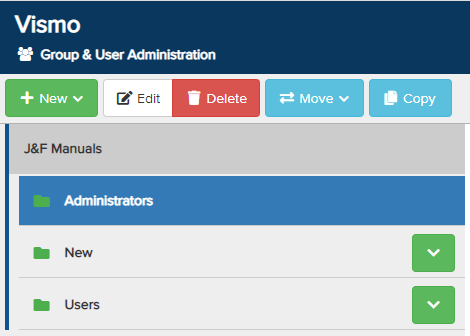
From the Group & User Administration page, select the group you wish to remove a user from. Ensure the group is highlighted in blue, then click Edit at the top. In this example, we will be removing a user from the Administrators group.
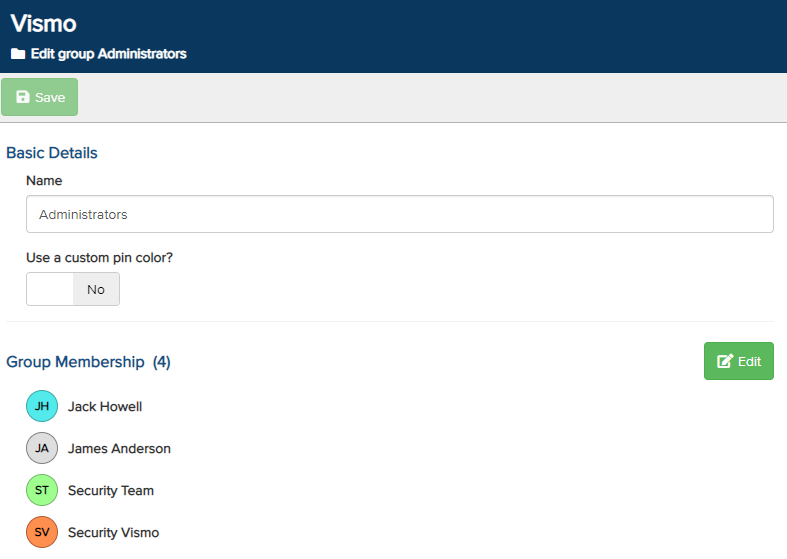
The group edit page will appear. Click the green Edit button next to the Group Membership section.
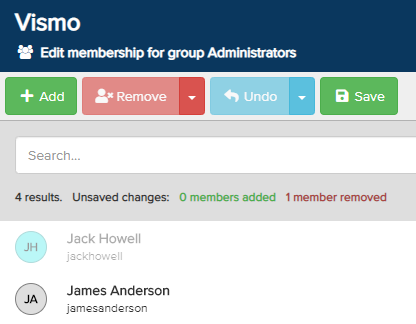
The Group Membership edit page will appear. Select the user you wish to remove from the group until they are highlighted in blue. Then click Remove.
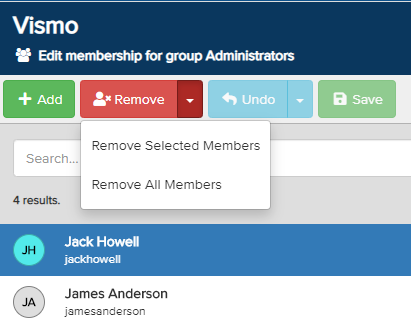
From the drop-down menu, choose either Remove Selected Members or Remove All Members.
- Remove Selected Members – This will remove only the members that are highlighted.
- Remove All Members – This will remove everyone from the group.
A message about unsaved changes will appear. Click Save to confirm the changes.
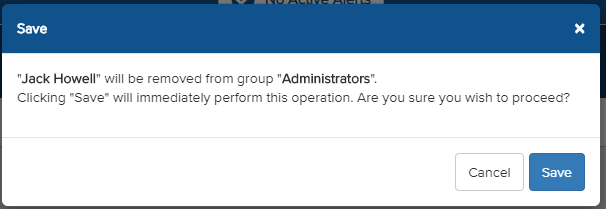
A pop-up will appear. Click Save to confirm the changes.
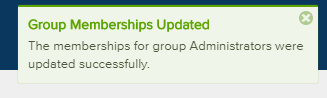
A notification will appear to confirm that the change has been successfully made to the Group Membership.