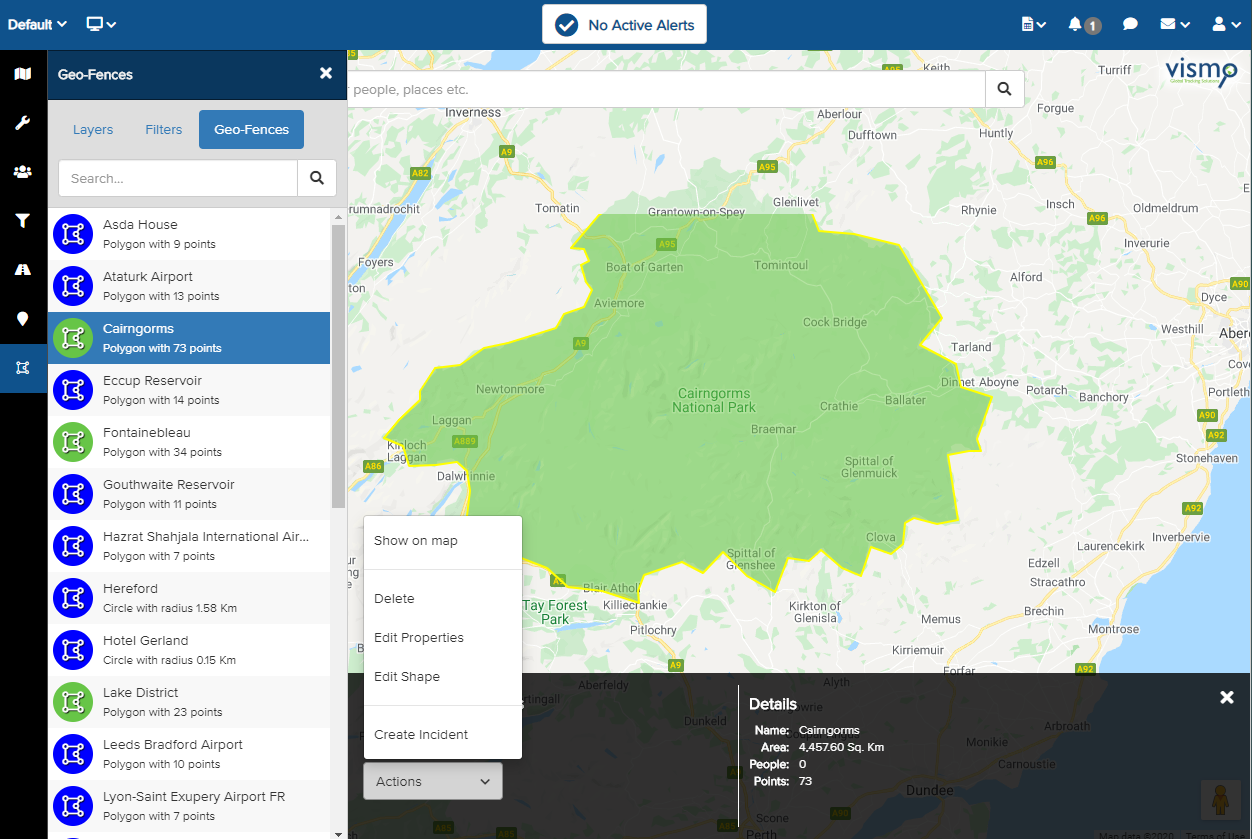
Showing geo-fence layers on the map
A Geo-Fence is a predefined area designated as safe or risky. Adding Geo-Fence Layers enables security teams to monitor when users enter or leave these locations. From your Map Dashboard, click the Geo-Fence icon in the side panel. All the Geo-Fence Layers you have permission to view will be displayed here.
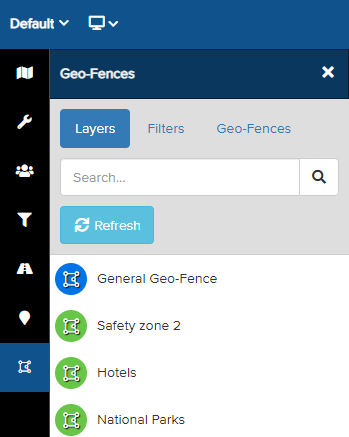
Click on the Geo-Fence Layer you wish to view on the map. The selected Geo-Fence Layers in the list will be highlighted in blue and displayed on the map. In this example, the "National Parks" and "Reservoir" Geo-Fence Layers have been selected.
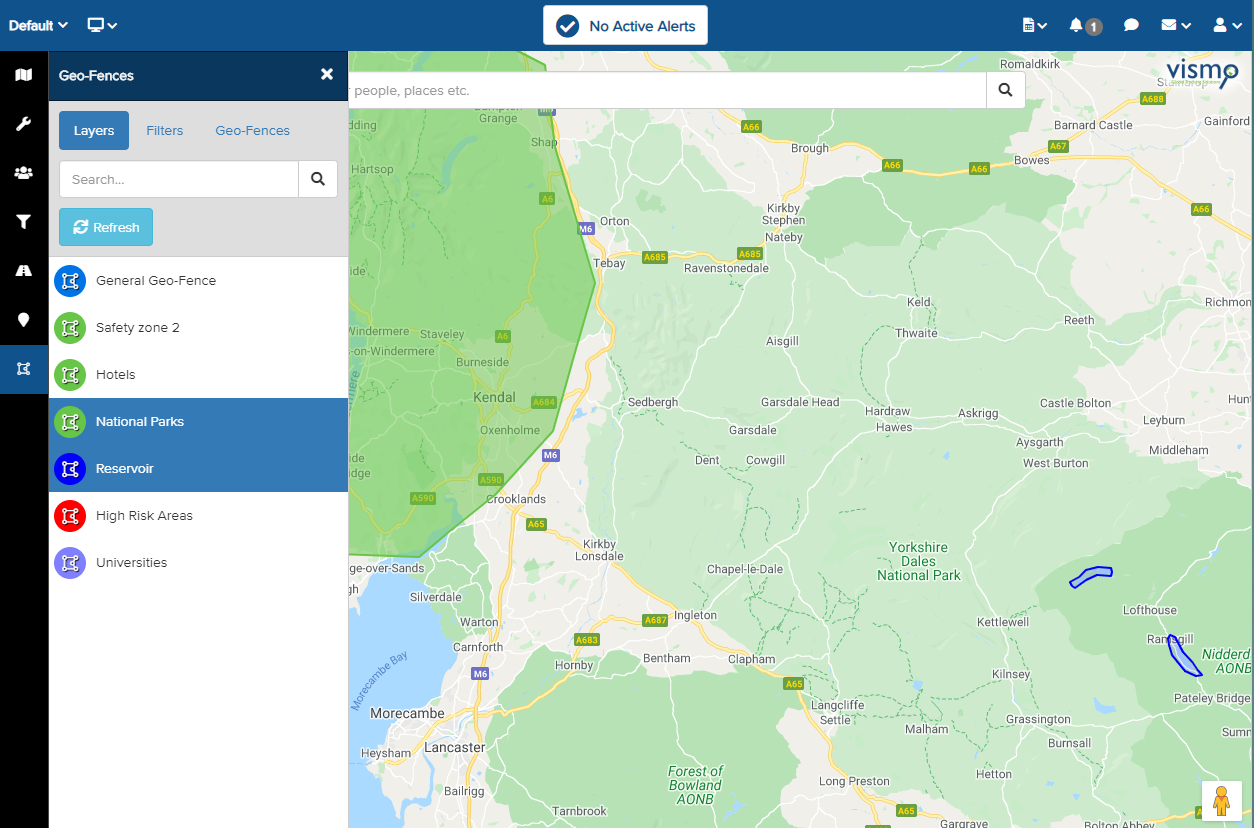
All the Geo-Fences within the selected layer will be displayed on the map in their configured colours. Zoom in and out of the map to view multiple locations.
Clicking on a Geo-Fence shape on the map will highlight it in yellow and display the details bar at the bottom of the screen.
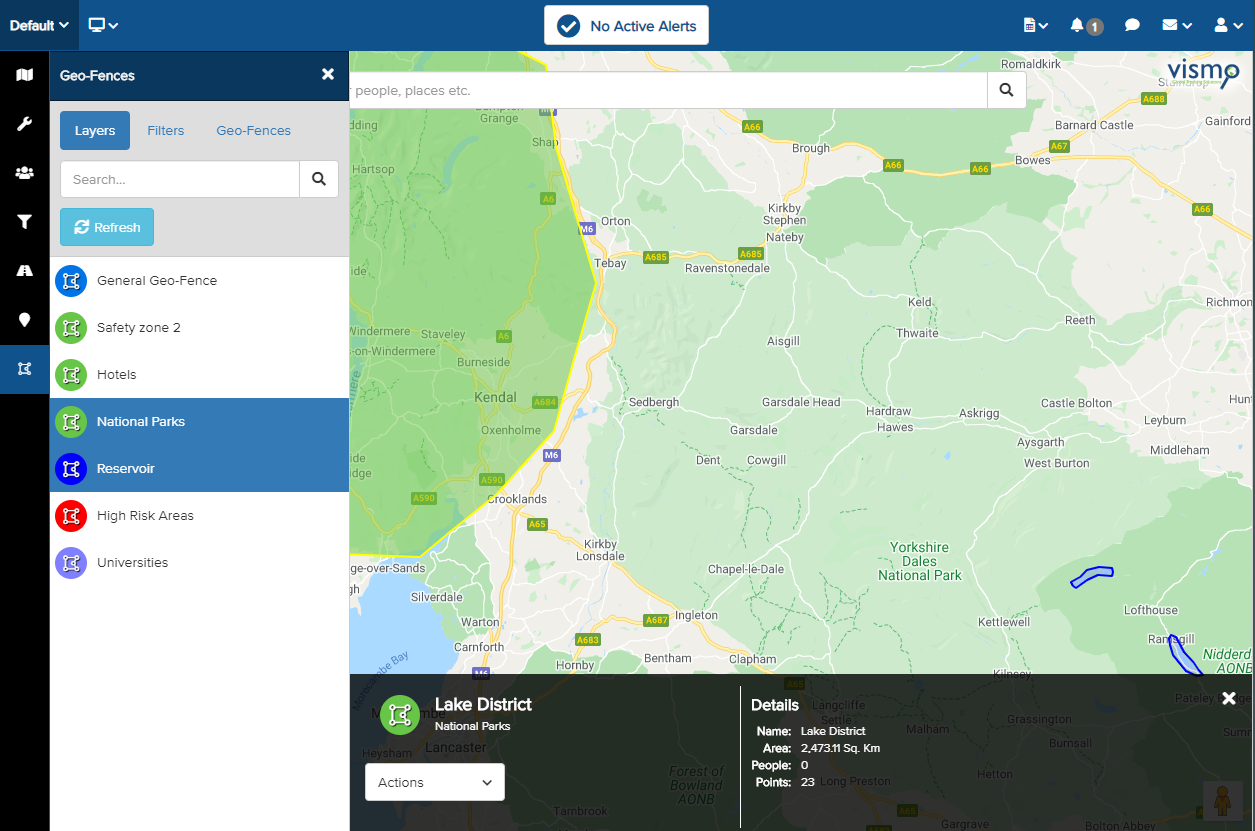
Viewing Specific Geo-Fences in a Layer
Once the required Geo-Fence Layers have been added to the map, you can view details about the individual Geo-Fences within the layer. Click on Geo-Fences at the top.
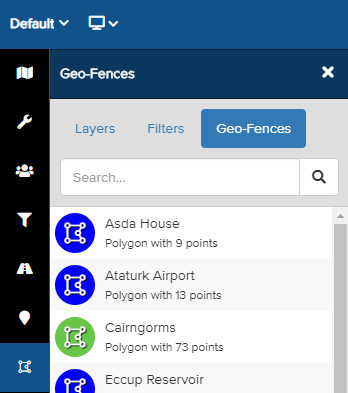
All the Geo-Fences within the selected layers will be listed here. Select a Geo-Fence to display its details at the bottom of the map.
Click the Actions arrow and select Show on Map to view the specific Geo-Fence on the map. In this example, we are viewing the Cairngorms Geo-Fence within the National Parks layer.