Customise Your View with Multiple Filters
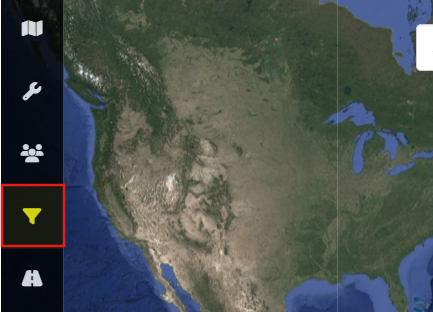
Filters enable you to identify users based on specific criteria. To get started, select the third icon labelled ‘Filters’ from the left-hand panel. Then, click ‘Add’ to reveal the list of available filters. These can relate to information linked either to the user’s account profile or to the device itself.
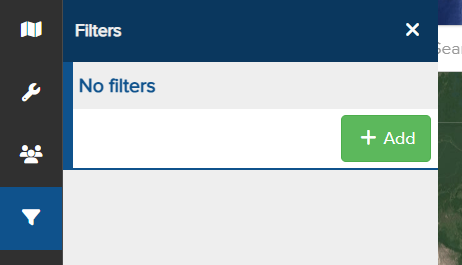
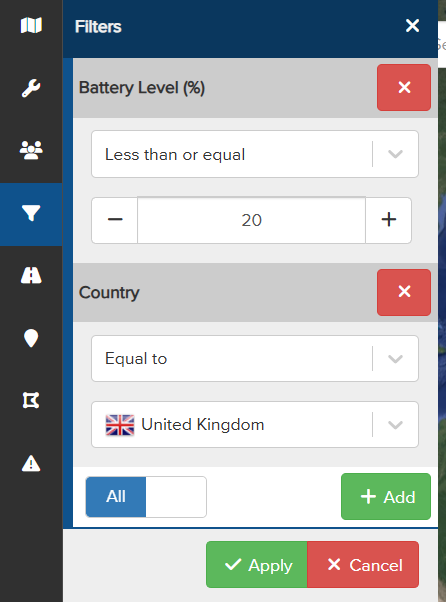
Select the desired filter and click ‘Select’. Then configure the filter by specifying the conditions and required action. Once complete, click ‘Apply’ to activate the filter. To add multiple filters, simply repeat these steps by clicking ‘Add’.
When multiple filters are applied, you can choose how the search is conducted by selecting either All or Any:
- All: Displays results that meet the criteria of all applied filters. For example, users must be located in the UK and have a battery level below 20% to appear on the map.
- Any: Shows results that meet the criteria of at least one filter. For example, users located in the UK or users with a battery level below 20% will be displayed on the map.
To return to the map dashboard and view the filtered results, click the blue ‘X’ to close the filter panel. When a filter is active, the filter icon turns yellow to indicate it is applied.