
This guide explains how to add a schedule trigger to an assignment template, so that assignments start automatically on a daily, weekly or monthly schedule.
At the scheduled time, Vismo starts an assignment from the template for each member of the chosen group, and their check-ins begin. Optionally, Vismo completes each assignment once the template's duration has elapsed. Scheduled assignments suit recurring shifts, patrols or site rounds that need check-ins at the same time each day, week or month, and they replace starting the same assignment by hand for each person, each time.
Before you start
- You need an existing assignment template. Assignments run from the template, so its duration and check-in settings apply.
- Decide which group the schedule is for. Assignments start for every member of the group, including its sub-groups.
- Schedule triggers sit alongside geo-fence triggers, which start an assignment when someone enters an area. To set those up, see Creating Assignment Triggers Using Geo-fences.
Adding a schedule trigger
|
Step |
What to do |
|
1 |
Go to Assignment Templates and open the template you want to schedule. |
|
2 |
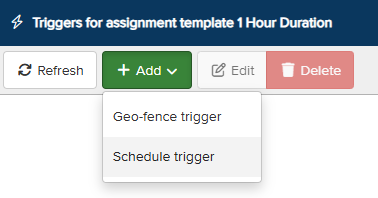
Open Triggers, choose Add, then Schedule trigger. |
|
3 |
Enter a Name for the schedule and make sure Enabled is on. |
|
4 |
Choose the Group. An assignment will start for every member of this group, including its sub-groups. |
|
5 |
Under Schedule, choose how it Repeats: daily, weekly on chosen Days of the week, or monthly on a set day. |
|
6 |
Set the Start time and Time Zone. |
|
7 |
Optionally, set an End date: the last day the schedule runs. |
|
8 |
Under When the schedule runs, choose either Start the assignment, unless already on one, or Start the assignment, and complete any existing one. |
|
9 |
Optionally, switch on Complete automatically to end each assignment once the template's duration has elapsed. |
|
10 |
Save the trigger. |
Good to know
- Monthly schedules set to days 29 to 31 fall back to the last day of shorter months.
- Schedules run at local time in the chosen time zone and stay correct through clock changes, so 09:00 stays 09:00 in summer and winter.
- Assignments ended by Complete automatically are recorded as ended on schedule, rather than completed by the user.
- With Complete automatically on, assignments are closed at the end of their duration rather than left open.
- You can switch a schedule off at any time with the Enabled setting, and switch it back on later.
Need more help? Contact Vismo Support at techsupport@vismo.com.