The Vismo Portal’s security settings let you update the account password.
To access these settings, select Security from the Main Configuration page.
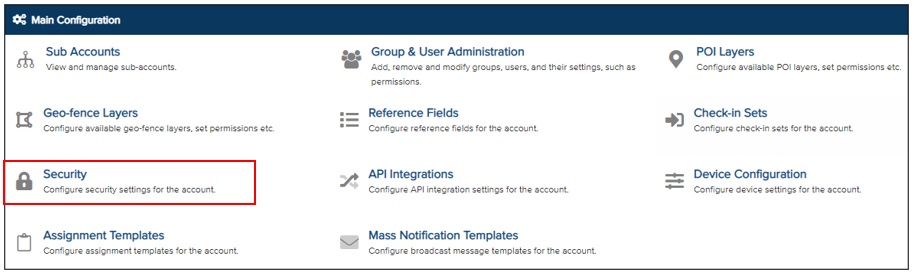
The account’s password settings will be displayed.
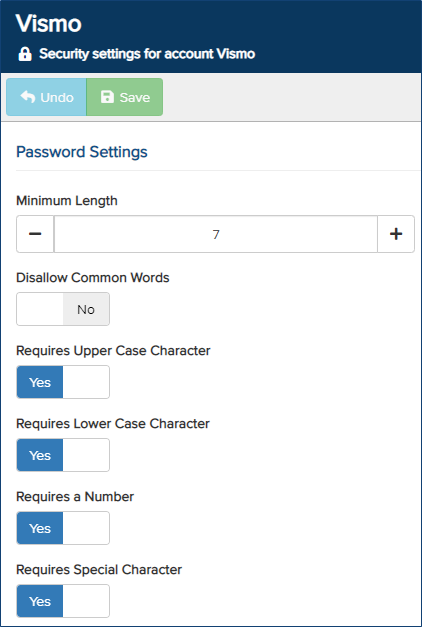
Update the account’s password settings as required.
- Minimum Length – This sets the minimum number of characters for the password. Use the + and − icons to adjust the length.
- Disallow Common Words – Toggle the switch to Yes or No as required.
- Requires Upper Case Character – Toggle the switch to Yes or No as required.
- Requires Lower Case Character – Toggle the switch to Yes or No as required.
- Requires a Number – Toggle the switch to Yes or No as required.
- Requires Special Character – Toggle the switch to Yes or No as required.
Once you have configured the settings, click Save at the top. This will update the password settings for the entire account.