
This guide explains how to set up two-step verification on your Vismo user, how to sign in once it is set up, and what to do if you lose access to your second step.
Two-step verification adds a second check when you sign in to Vismo. Once you use it, a password alone isn't enough to sign in: you also approve the sign-in in the Vismo Monitor app, or enter a code from an authenticator app, a text message or an email. This means a stolen password alone is no longer enough to get into your account.
Before you start
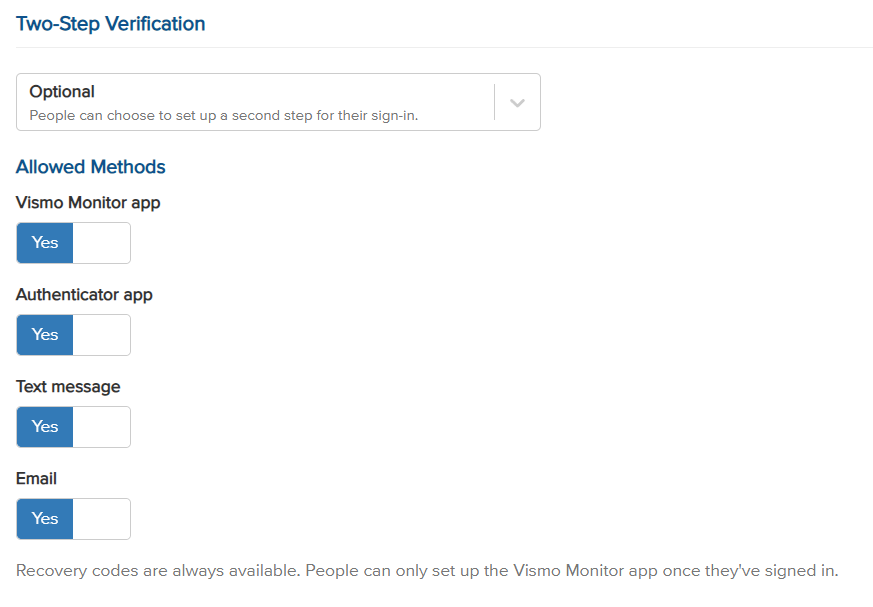
- Your account administrator decides how two-step verification is used in your account: Off, Optional or Required. Most accounts start on Optional, so nothing changes until you choose to set it up or your administrator makes it required.
- To use the Vismo Monitor app as a method you need Vismo Monitor 3.0.2 or later. See "Approving Sign-Ins with the Vismo Monitor App".
- To use an authenticator app, install one such as Microsoft Authenticator or Google Authenticator on your phone.
- If you sign in with single sign-on (SSO), two-step verification in Vismo doesn't apply to you. Your organisation's own sign-in handles the second step.
The methods you can use
|
Method |
How it works |
Good to know |
|
Vismo Monitor app |
Vismo sends a request to your phone. The browser shows a number; you tap the same number in the app and confirm with your fingerprint, face or phone lock. |
Needs Vismo Monitor 3.0.2 or later. Set up from inside the app, after signing in. Works offline using a sign-in code that changes every 30 seconds. |
|
Authenticator app |
A six-digit code from Microsoft Authenticator, Google Authenticator or a similar app. The code changes every 30 seconds. |
Works without signal. Your phone's clock must be right. |
|
Text message |
Vismo texts a six-digit code to your mobile. |
The code lasts 10 minutes. Numbers are shown masked, for example +44 ••• ••• 344. |
|
|
Vismo emails a six-digit code. |
The code lasts 10 minutes. Addresses are shown masked. |
|
Recovery codes |
Ten single-use codes shown once, when you first set up two-step verification. |
Each code works once. You can make a new set from your security page, which cancels the old set. |
(Your account administrator chooses which methods are allowed in your account. Recovery codes are always available.)
Set up two-step verification yourself (Optional policy)
- Sign in to the Vismo Portal.
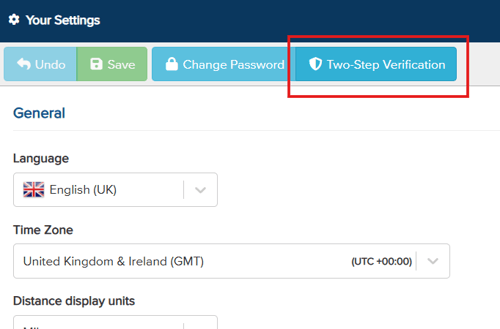
- Open My Settings
- Choose Two-Step Verification. Your security page opens.
- Add a method:
- Authenticator app: scan the QR code (or type the setup key) into your authenticator app, then enter the code the app shows.
- Text message or email: enter your mobile number or email address. Vismo sends a code to confirm it; enter the code.
5. When your first method is set up, Vismo shows ten recovery codes. They are shown once only, so save them somewhere safe.
6. Optionally, add more methods and choose your default – the method Vismo tries first.
Set up two-step verification when your account requires it
If your account's policy is Required and you haven't set anything up, Vismo asks you to choose a method straight after you enter your password. You can't continue until you finish.
- Enter your username and click Continue, then enter your password.
- On the Set up two-step verification screen, choose a method.
- Follow the steps for that method (as above).
- Save the ten recovery codes Vismo shows you.
Sign in with two-step verification
- Enter your username and click Continue, then enter your password, as before.
- Vismo asks for your default method:
- Vismo Monitor app: the browser shows a number and waits. Tap the same number in the app on your phone.
- Authenticator app: type the current code.
- To use a different method, choose Use another method. Email and text message codes are only sent when you choose one. Choose Recovery code to enter one of your saved codes.
- Optionally, tick Don't ask again on this browser to skip the second step on that browser for 30 days.
-
If you have access to several accounts, choose one, exactly as before.
The Vismo Locate & Protect and Vismo Monitor apps use the same Vismo sign-in pages, so they show the same second step. If you approve with the Monitor app on the same phone, switch to Vismo Monitor, tap the number, and come back.
Manage your methods
From your security page you can add a method, make one the default, remove one, make new recovery codes, or forget every browser you asked Vismo to remember. Before changes, Vismo may ask you to verify again. Head to Account Settings > Security to be able to action for the whole account.
Good to know
- Nobody is signed out when two-step verification is turned on or the policy changes. Apps that are already signed in stay signed in; you meet the second step at your next sign-in.
- Switching to another account after signing in doesn't ask for the second step again.
- If you are a guest in other accounts, your home account's two-step verification settings apply.
- Free methods (the Monitor app and authenticator apps) are tried before text message and email, and Vismo only sends a code when you ask for one.
- A new email or text code can be sent after 60 seconds, up to 5 codes every 15 minutes. After 5 wrong attempts at one code, you need a new code.
- After 6 wrong passwords or codes, you'll need to wait 5 minutes before trying again.
- If you receive an email titled "Someone tried to sign in to your Vismo account", someone else knows your password. Change it straight away, and anywhere else you use it. Vismo will never ask you for your password or a code.
If you lose your second step
- Use another method or one of your recovery codes. Then remove the old method on your security page and set up the new one.
- If you have no other way in, ask your account administrator to reset your two-step verification from the portal.
- If your administrator can't help (for example, you are the only administrator), contact Vismo Support. For your security, Vismo Support will verify who you are using details already held on file before making any change.
Troubleshooting / FAQs
|
Problem |
Likely cause |
What to do |
|
"I've lost my phone" or "I got a new phone" |
Your Monitor app or authenticator app is gone. |
Use another method or a recovery code, then remove the old method on your security page and set up the new phone. With no other way in, ask your administrator to reset it. |
|
"The code isn't accepted" |
An old code, a code already used, an expired email or text code (10 minutes), or a phone clock that is wrong. |
Wait for a new code. For an authenticator app, set your phone's time to automatic. |
|
"No code arrives" |
Spam folder, wrong number or address, or too many codes requested. |
Check your spam folder. A new code can be sent after 60 seconds, up to 5 every 15 minutes. Otherwise use another method. |
|
"It says to wait 5 minutes" |
Too many wrong passwords or codes. |
Wait 5 minutes and try again. |
|
"I'm suddenly asked to set it up" |
Your account's policy has changed to Required. |
Choose a method and follow the steps. Speak to your administrator if you have questions about the policy. |
|
"It never asks me" |
The policy is Off, you haven't set it up (Optional), you use single sign-on, or the browser is remembered. |
This is usually expected. |
|
"My administrator can't reset me" |
You are a guest, the administrator is trying to reset themselves, or they are the only administrator. |
Guests are reset in their home account. Otherwise contact Vismo Support. |
Need more help? Contact Vismo Support at techsupport@vismo.com.