
This guide explains how people who are guests in more than one Vismo account can see which account they are in, switch accounts and leave an account in the Vismo Monitor app.
Before you start
- You need Vismo Monitor 3.0.2 or later.
- These options only appear if you have access to more than one account – for example, if you have been invited as a guest in another Vismo account. See "Inviting Guest Users from Another Vismo Account".
See which account you're in
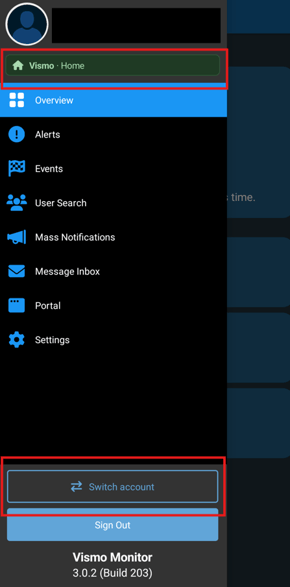
- Open the burger menu in the Vismo Monitor app.
-
The account you're currently in is shown at the top of the menu.
Switch account
- Open the menu.
- Tap Switch account at the bottom of the menu.
- Choose the account you want.
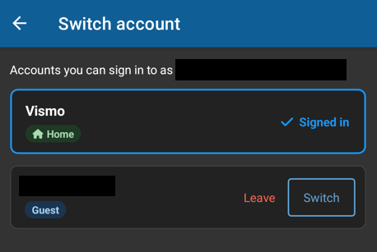
Switching doesn't ask you to sign in again.
Leave an account
- Open the account list.
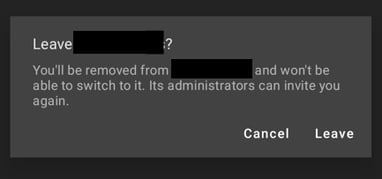
- Tap Leave next to the account you're a guest in.
- Confirm when asked.
Good to know
- You can only leave accounts you're a guest in. Your home account can't be left.
- Leaving the account you're currently signed in to signs you out.
- After you leave, the account's administrators can invite you again.
Need more help? Contact Vismo Support at techsupport@vismo.com.