
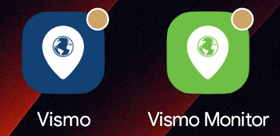
This guide explains the unread count shown on the Vismo Locate & Protect and Vismo Monitor app icons.
Both Vismo apps now show a number on their icon, so users can see at a glance that something needs their attention without opening the app. The number always matches what the app shows on its own screens.
Before you start
- Locate & Protect 6.1.0 or later, or Monitor 3.1.0 or later, is needed. Update from the App Store or Google Play.
- Notifications, and badges, must be allowed for the app in the phone's settings.
What the number shows
|
App |
The number on the icon is |
Where to see the same number in the app |
|
Locate & Protect (shown as "Vismo") |
Unread direct messages, plus mass communications that haven't expired and haven't been opened yet. |
The envelope at the top right of the home screen. |
|
Monitor (shown as "Vismo Monitor") |
Unread direct messages, plus open red flag alerts the administrator can see. |
Unread Messages plus Active Alerts on the overview. For example, 2 unread messages and 1 open alert give a badge of 3. |
What counts
In Locate & Protect:
- Direct messages count until the user reads them in the app.
- Mass communications count while they haven't expired and the user hasn't opened them. Opening one takes it out of the count, even if it asks for a response. An expired message drops out on its own.
In Monitor:
- Direct messages: unread messages across all the administrator's conversations in the account they're signed in to.
- Open red flag alerts: every type (panic, man down, missed check-in and geo-fence) plus external alerts, as long as the administrator has permission to see them. An alert counts until it is closed, so an acknowledged alert still counts.
Each count covers only the account the user is signed in to. A guest administrator in several accounts sees the count for the account they're currently in, never a total across accounts.
Turning badges on or off on iPhone
- Open the phone's Settings.
- Go to Notifications › Vismo (or Vismo Monitor).
- Make sure Allow Notifications is on, then turn Badges on or off.
- Open the phone's notification settings and check that app icon dots (badges) are on.
- Open the app's notification settings and check the categories that show a badge: Messages for Locate & Protect, or Direct Messages and Red Alert Notifications for Monitor.
Turning badges on or off on Android
- Open the phone's notification settings and check that app icon dots (badges) are on.
- Open the app's notification settings and check the categories that show a badge: Messages for Locate & Protect, or Direct Messages and Red Alert Notifications for Monitor.
The exact menu names depend on the phone's maker.
Good to know
- A mass communication that asks for a response now leaves the count as soon as it is opened, even if the user hasn't answered it yet. The envelope and the icon follow the same rule, so they always agree.
- The Monitor badge can be higher than the messages counter in the app. That is expected: the difference is the open alerts.
- On Android, phones show either a dot or a number depending on the phone. Google Pixel phones show a dot; Samsung phones can show a number, depending on a setting.
- On Android, if a user had changed the sound, vibration or importance of message or red alert notifications, those choices go back to the defaults once after the update. Users can set them again in the app's notification settings.
- If something changes while the app is closed and no notification is sent (for example, a mass communication expires or a message is read on another device), the number stays as it was until the app is next opened, and then corrects itself.
- Signing out of either app, or switching server, clears the badge.
- On Android, dismissing the notifications removes the dot or number, but the envelope in the app still shows the count.
Troubleshooting / FAQs
|
Problem |
Likely cause |
What to do |
|
No number on the icon (iPhone) |
Badges are turned off, notifications aren't allowed, or the app is an older version. |
Check Settings › Notifications › Vismo (or Vismo Monitor): Allow Notifications and Badges should both be on. Check the app is on Locate & Protect 6.1.0 or Monitor 3.1.0 or later. |
|
No dot or number on the icon (Android) |
Notification dots are off for the phone, the app or the category; the launcher doesn't show dots; or there's no message notification in the notification shade. |
Check the phone's notification settings for app icon dots, then the app's notification settings for the Messages category (Locate & Protect) or Direct Messages and Red Alert Notifications (Monitor). |
|
A dot rather than a number (Android) |
The phone's launcher decides how badges are shown. |
This is expected. On Samsung phones, look for the app icon badge setting in Notifications and choose to show the number. |
|
The icon and the envelope show different numbers (Locate & Protect) |
Something changed while the app was closed. |
Open the app. It sets the badge to the envelope number. If they still differ with the app open, contact Vismo Support with the user's name, the account and both numbers. |
|
The Monitor badge is higher than the unread messages |
The badge includes open red flag alerts. |
Check Active Alerts on the overview. Closing the alerts brings the number down. |
|
The badge stays after reading everything (iPhone) |
The app is still on Locate & Protect 6.0.5 or Monitor 3.0.2. These versions can show a number that doesn't clear. |
Update the app from the App Store. The number corrects itself the first time the updated app opens. Until then, badges can be turned off under Settings › Notifications › Vismo (or Vismo Monitor) › Badges. |
|
Notifications or a badge for a previous user after signing out of Monitor |
A known issue: after signing out of Monitor, or switching account or server, a device can keep receiving the previous user's notifications. |
Contact Vismo Support with the user, the device and the time it happened. |
Need more help? Contact Vismo Support at techsupport@vismo.com.