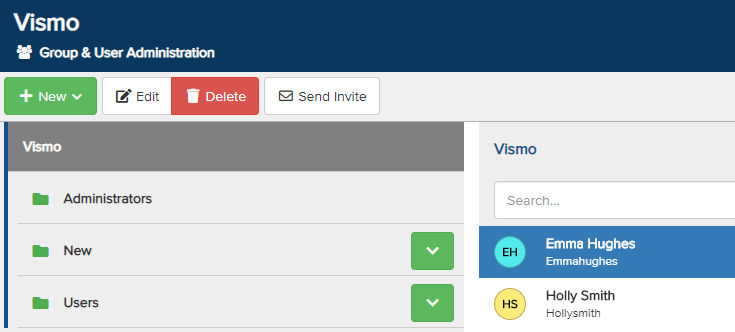
You can change any user’s password within the Portal when necessary. From the Main Configuration page, click the Group & User Administration button to access these functions. Search for the person whose password you wish to change. Click on their name until the user is highlighted in blue, then click Edit at the top. In this example, we are changing Emma Hughes’ password.
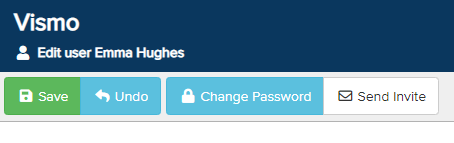
The User Details page will be displayed. At the top, click Change Password.
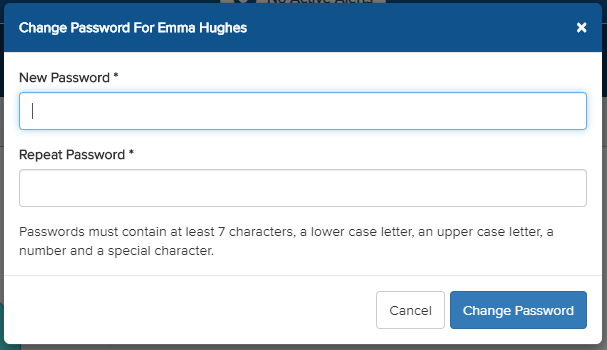
A Change Password pop-up will appear. Enter the new password and repeat it to confirm. Click Change Password to apply the change. Password settings can be modified under Security.