
This guide explains how supervisors can open any assignment in the Vismo Portal and see everything that happened during it.
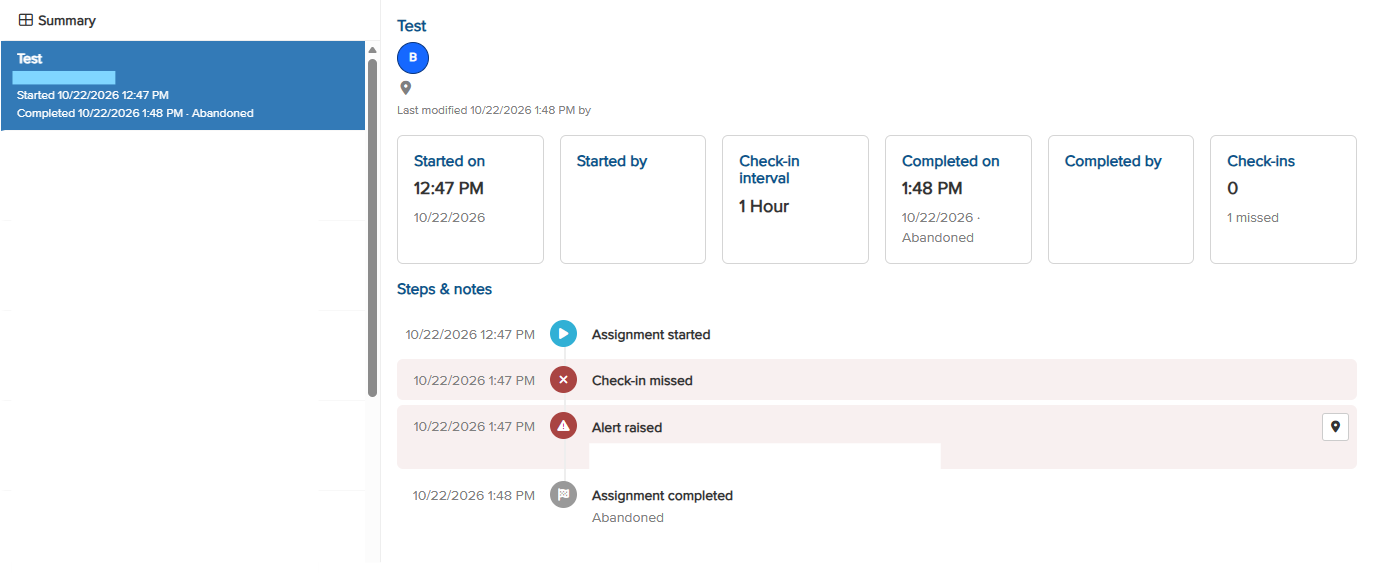
An assignment is a period of lone working, such as a shift or a site visit, during which the worker checks in at agreed intervals. The Assignments screen now shows the full history of each assignment: when it started, every check-in, any missed check-in, alerts raised and closed, and notes and photos sent from the field. Each event shows where it happened, and the screen updates itself as new events arrive. You can confirm that a worker checked in as required, spot someone about to miss a check-in before an alert is raised, and look back at the full timeline after an incident.
Before you start
- The screen uses the same access as existing assignment features. Users without that access are not shown it.
Viewing an assignment's history
|
Step |
What to do |
|
1 |
Open Assignments in the portal. |
|
2 |
Use the Summary cards at the top for an instant picture of the assignments in view. Use Filter to narrow the list. |
|
3 |
Select an assignment from the list on the left. The list shows each assignment's person, start time and how it finished. |
|
4 |
Review the headline facts: who started it, the check-in interval, when it finished, and how many check-ins were made or missed. |
|
5 |
Scroll through the timeline of events. Select the pin on any event with a location to open a map showing exactly where the worker was at that moment. |
|
Summary card |
What it tells you |
|
Assignments |
How many assignments are in the current view. |
|
Overdue check-ins |
Workers whose check-in time has passed. These need attention first. |
|
Due within 15 minutes |
Workers with a check-in coming up shortly, so you can act before it is missed. |
|
No check-ins required |
Assignments that run without scheduled check-ins. |
|
Started automatically |
Assignments the platform started for the worker, rather than started by hand. |
Good to know
- Check-ins are marked as early or late, so you can see at a glance how closely the worker kept to schedule.
- Missed check-ins and alerts are highlighted in red, with the time each alert was raised and closed.
- Notes and photos sent from the field, and replies from the control room, appear in the timeline at the moment they were added.
- The list, summary and timeline update automatically as check-ins, alerts and notes arrive. There is no need to press Refresh.
- History is shown for both active and completed assignments, in your own time zone.
- Exporting the history, and a history view in the mobile app, are not currently available.
Need more help? Contact Vismo Support at techsupport@vismo.com.