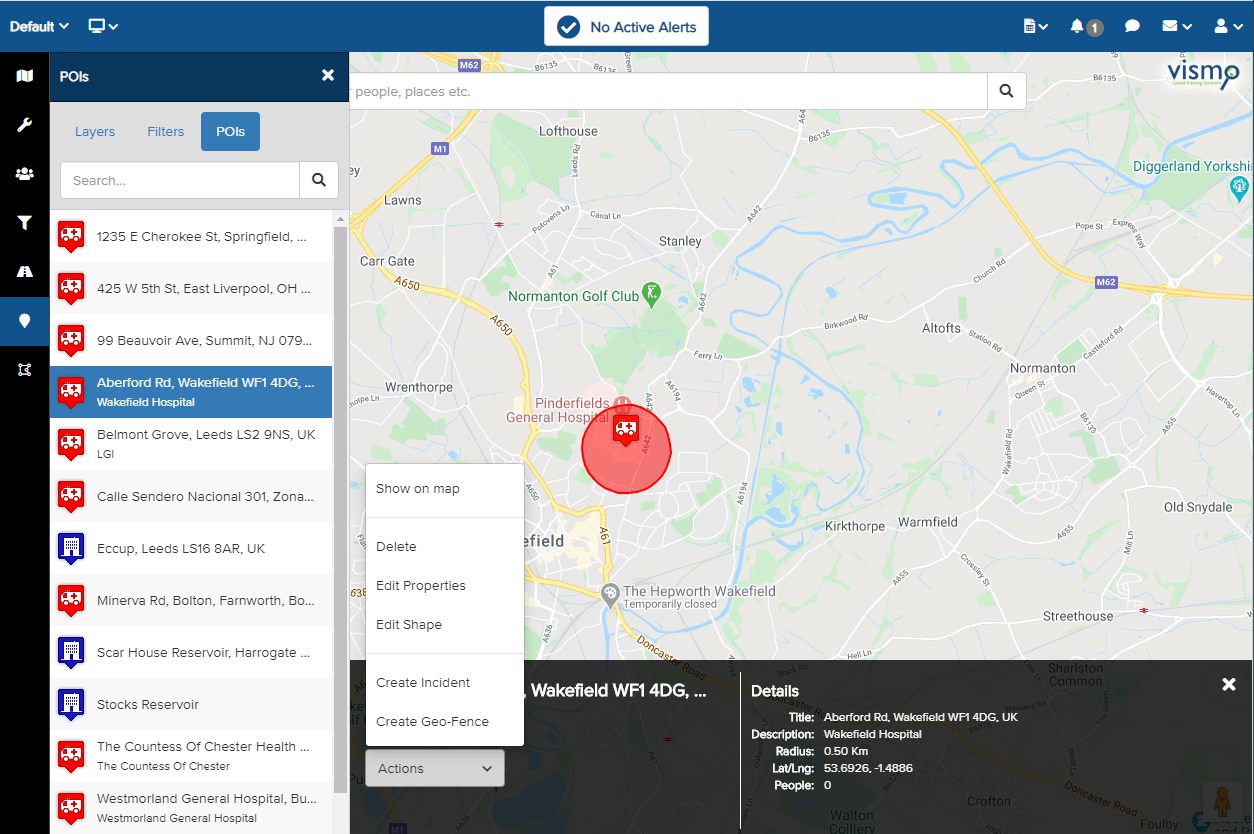
A Point of Interest (POI) can be added to a location on the Map Dashboard to help administrators better understand a traveller’s whereabouts in the event of an emergency. From the Map Dashboard, click the POI icon in the left-hand side panel. All POI layers you have permission to view will be displayed.
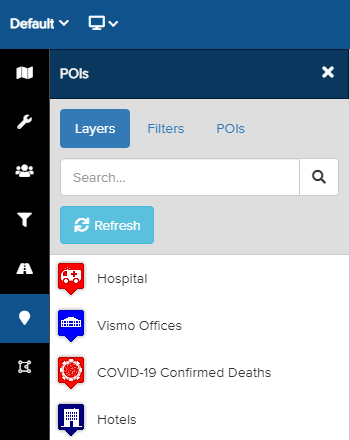
Click on the POI layer you wish to view on the map. The selected layers will be highlighted in blue and shown on the map. In this example, the "Hospital" and "Hotels" POI layers have been selected.
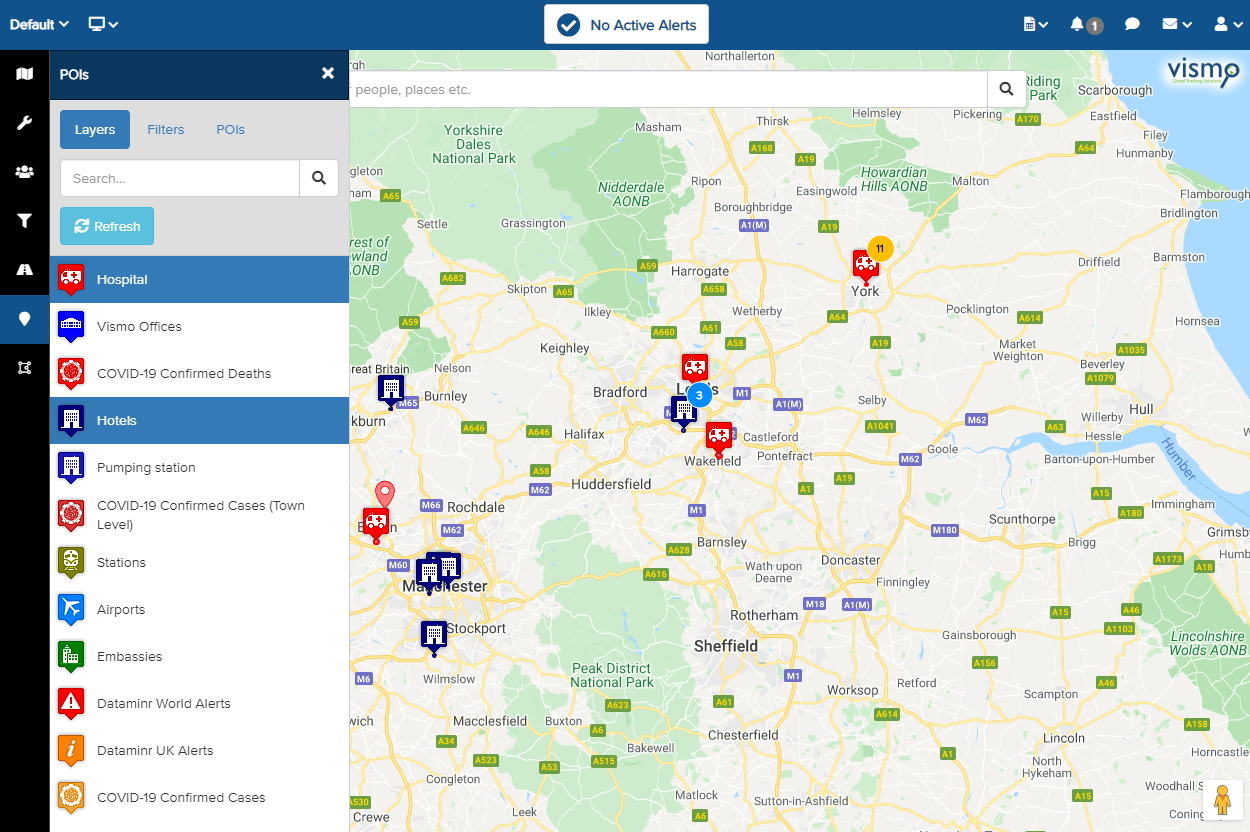
All POIs within the selected layer will appear on the map using the configured colours and icons. You can zoom in and out of the map to view different locations.
Clicking on a POI shape on the map will highlight it in yellow and display the details bar at the bottom of the screen.
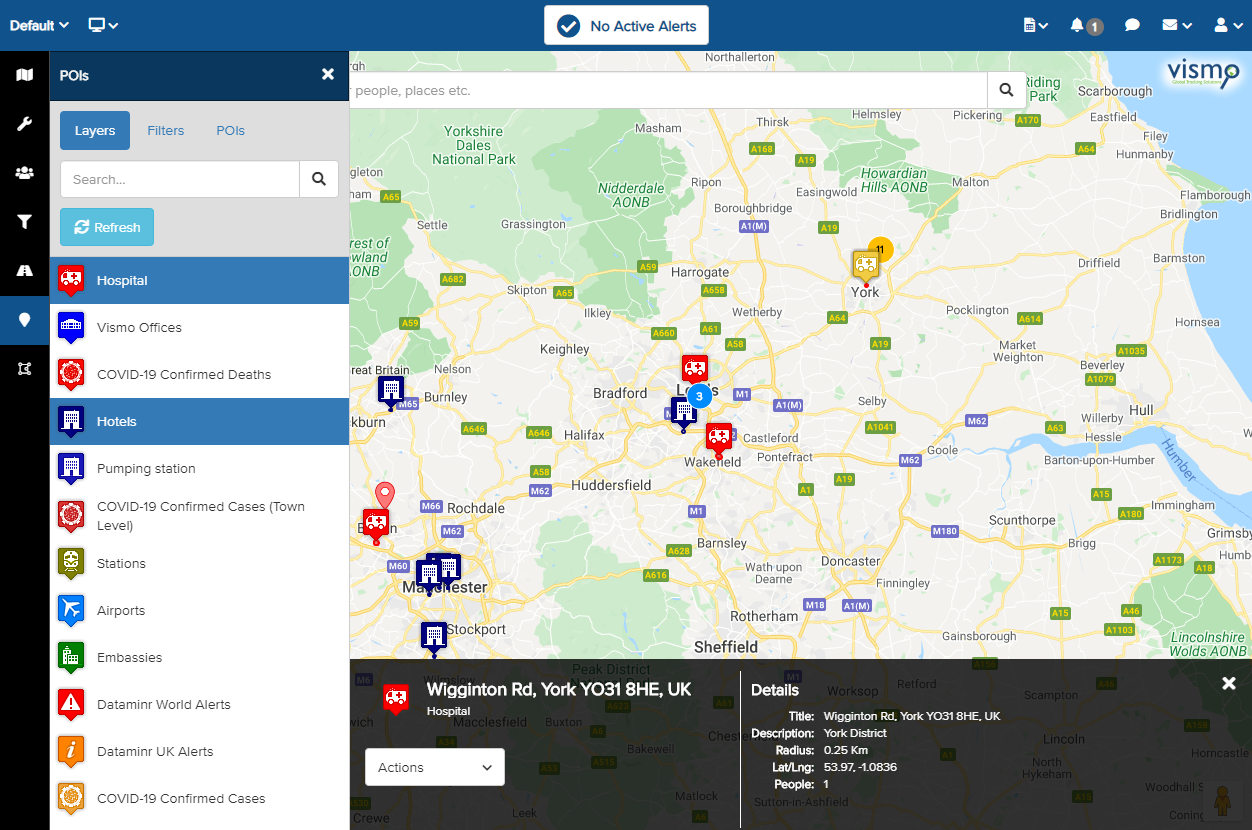
Viewing Individual POIs in a Layer
Once the required POI layers have been added to the map, you can view details of the individual Points of Interest within each layer. Click on POIs at the top.
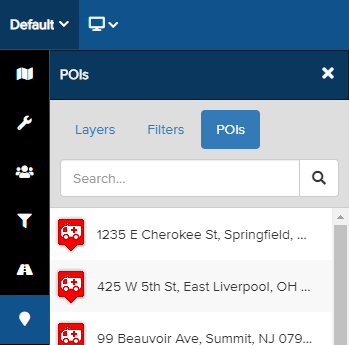
All POIs within the selected layers will be listed here. Select a POI to view its details at the bottom of the map.
Click the Actions arrow and select Show on Map to locate the specific POI on the map. In this example, we are viewing the Wakefield Hospital POI within the Hospital layer.