
Pairing device
1) Ensure Bluetooth is enabled on your mobile device.
2) If you haven't already, download the Vismo Locate & Protect App from you App Store and activate your account (your administrator will provide the activation details).
3) Open the Vismo Locate & Protect App and
go to Settings > Devices.
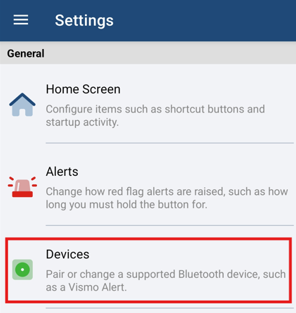
4) A list of paired devices will appear. Tap the “+” icon in the top right corner to add a new device.
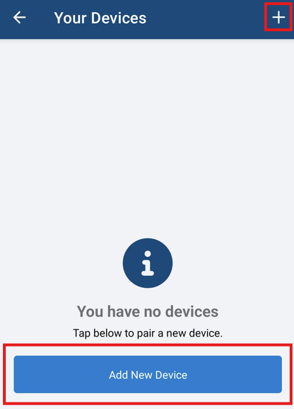
5) Press and hold the Vismo Alert to put it in pairing mode so your device can discover it automatically.
If the Vismo Alert isn’t found, a red exclamation mark will appear. If successful, you’ll see a green tick.

6) Tap Continue to complete the pairing. Once paired, you can configure the device’s activation settings.
NOTE: Each mobile device can be paired with multiple Vismo Alerts. Simply repeat the process described above.
Device Configuration
You can configure your Vismo Alert to perform three actions: Single Press, Double Press, and Hold Down (Long Press). You can also rename or delete the Vismo Alert.
- Open the Vismo App and go to Settings.
- Select Devices.
- Click on the Vismo Alert you want to configure.
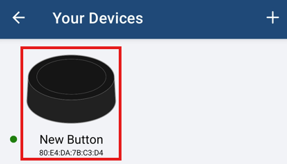
NOTE: If no Vismo Alert appears, it hasn’t been paired yet. If you have multiple Vismo Alerts, press one, and the corresponding Vismo Alert image will move or bounce.
On this screen, you can configure your Vismo Alert. By default, the Hold Down action is set to trigger a red alert, meaning holding the Vismo Alert for a few seconds will activate the alert.
To rename the Vismo Alert, click on New Button under General.
Configuring Actions
You can assign an action to each type of press (Single Press, Double Press, and Hold Down). The configuration process is the same for all types.
- Single Press – One quick press.
- Double Press – Two quick presses.
- Hold Down – Pressing the Vismo Alert for a couple of seconds.
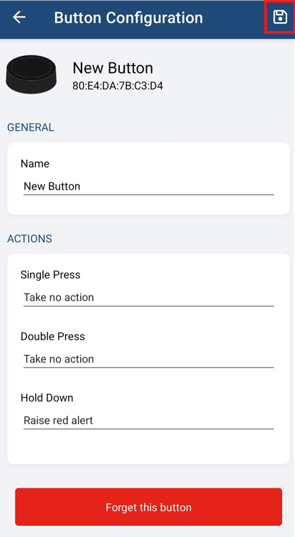
- To set an action for Single Press, click on Take No Action.
- A small window will pop up. Scroll to choose the action you want (e.g., Raise red alert).
- Click the save icon in the top right, to save the new actions.
Your Vismo alert is now configured to activate a red alert with a Single Press. The process is the same for Double Press and Hold Down.
Deleting the Vismo Alert
- Delete the Vismo Alert.
- Click on Forget this button.

Using the Vismo Alert
NOTE: If you are using an iOS device, do not fully close the app (swipe it away), as the Vismo Alert will not function. Ensure the app remains running in the background.
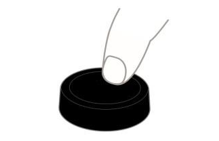
Once the Vismo Alert is configured, simply press it once, press it twice, or hold it down to perform the action selected in your Vismo App.
The Vismo Alert’s LED will flash green to confirm it is communicating with the device.
LED Indicators
Green – The Vismo Alert is communicating with the device. This indicates the action has been requested, but not necessarily completed successfully.
Amber – The Vismo Alert is not communicating with the app. This may occur if the device is not paired, is out of range, or, for iOS users, if the app has been swiped away.
Red – The device is either not paired or out of range. A constant red light indicates the battery is running low.