
This guide explains how to use the Alert step in a workflow to acknowledge or close a person's alert automatically.
Workflows can now acknowledge a person's alert as well as close it. The previous Close Alert step has become a single Alert step with two choices, so a workflow can show that an alert is being handled the moment it starts, then close it once the person is confirmed safe. Both happen without any extra clicks from the operator.
Before you start
- If the person has no open alert, the workflow simply moves on to the next step.
- Each workflow run shows whether the alert was acknowledged or closed, and the reason given.
Adding an Alert step to a workflow
|
Step |
What to do |
|
1 |
Open the workflow in the workflow designer, Account Settings > Workflows. |
|
2 |
Add an Alert step at the point in the workflow where the alert should be acknowledged or closed. |
|
3 |
Choose what the step does: Acknowledge alert or Close alert. |
|
4 |
If you chose Close alert, optionally enter a reason. It is recorded against the alert. |
|
5 |
Save and publish the workflow. |
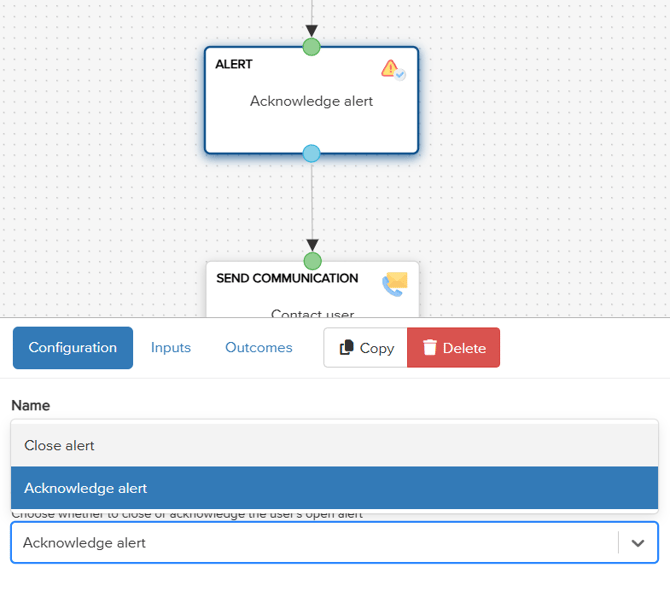
|
Choice |
What it does |
|
Acknowledge alert |
Records that someone is dealing with the alert, exactly as if an operator had acknowledged it by hand. |
|
Close alert |
Closes the alert, as the Close Alert step always has, with an optional reason recorded against the alert. |
Updated User safety template
The ready-made User safety workflow template now acknowledges the alert as its first step, before contacting the person. The flow is:
|
Stage |
What happens |
|
Alert raised |
The workflow starts. |
|
Acknowledge alert |
New first step: the alert is marked as being handled. |
|
Contact person |
The workflow asks whether the person is safe. |
|
Safe |
Close alert. |
|
Not safe |
Refer to procedure. |
Good to know
- If the person has no open alert, the workflow simply moves on to the next step.
- Each workflow run shows whether the alert was acknowledged or closed, and the reason given.
Need more help? Contact Vismo Support at techsupport@vismo.com.