
This guide explains how to use the mass notification action in a workflow without response options.
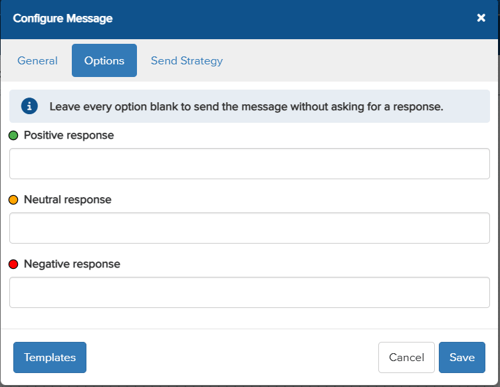
Response options on a workflow's mass notification action are now optional. If you send a mass notification without responses, the workflow moves straight on to the next action as soon as the notification has started.
Before you start
- You need permission to create and edit workflows in the Vismo Portal.
- Without response options, the workflow does not wait for replies. It moves on to the next action immediately after starting the notification.
Setting up a mass notification without responses
- Open the workflow in the workflow designer: Account Settings > Workflows.
- Add a mass notification action, or open an existing one.
- Enter the message as usual, and leave the response options empty.
- Save and publish the workflow.
Good to know
- Without response options, the workflow does not wait for replies. It moves on to the next action immediately after starting the notification.
Need more help? Contact Vismo Support at techsupport@vismo.com.