
This guide explains how the Vismo Locate & Protect app locates a person more often while a panic alert is active, and how administrators can configure it.
When someone raises a panic alert from the Locate & Protect app, the app now aims to take a location fix every 30 seconds until the alert ends, instead of using its normal tracking interval. This lets your security team follow a person in danger more closely. When the alert is closed, the app goes straight back to its usual tracking settings. Nothing changes for the user: the alert screen looks the same and there is no setting in the app.
Before you start
- Faster locating is on by default for every account, with a one-hour time limit.
- The user needs Locate & Protect 6.1.0 or later on iPhone or Android. Phones on 6.0.5 or earlier keep their normal tracking interval during an alert, and the portal settings have no effect on them until the app is updated.
- The settings are already in the portal, so administrators can set them now.
- To change the settings you need access to Device Configuration in the Vismo Portal.
Which alerts it applies to
- Panic alerts raised from the app: the red alert button on the home screen, or a paired Bluetooth panic button.
- Man down, missed check-in and geo-fence alerts are not affected.
Changing the settings
- Decide whether to change the settings for the whole account or for a group, then open the Device Configuration page at that level: Account › Device Configuration.
- Select the device Vismo Mobile App and go to the Alerts section.
- To change a setting, click the Default drop-down and select Changed.
- Set Locate more frequently during an alert to On or Off. When not set, it is On.
- Set Time limit for locating more frequently to between 1 minute and 24 hours. When not set, it is 1 hour.
- Click Save at the top to confirm.
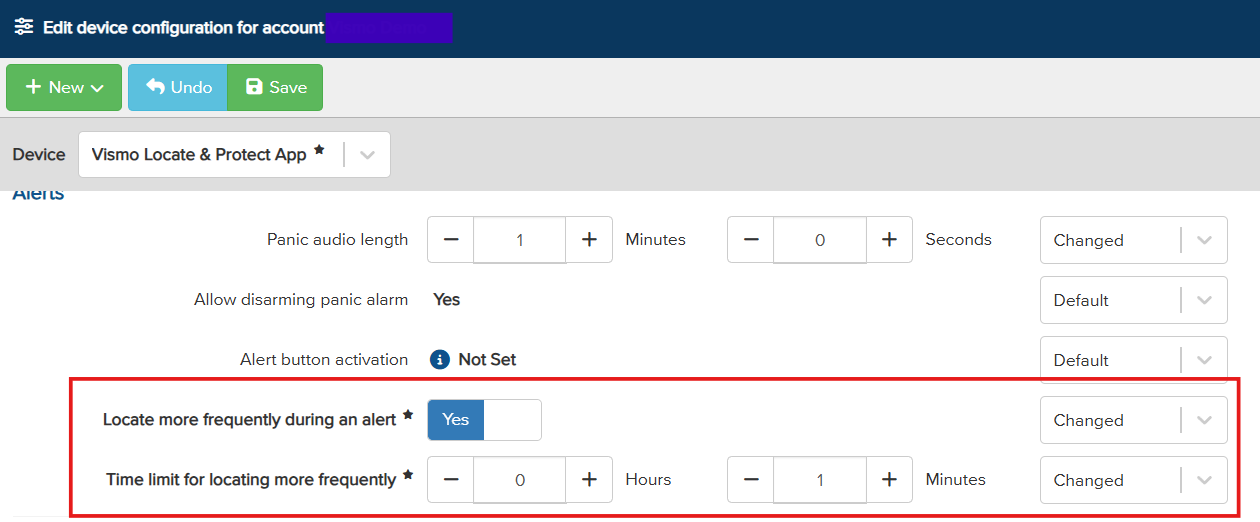
A change reaches the phone with its next configuration update, and it also applies to an alert that is already in progress.
When faster locating stops
- When an operator closes the alert in the portal or in Monitor.
- When the user cancels their own alert (only where the account allows it).
- When the time limit passes. The app returns to normal tracking, but the alert itself stays open in the portal.
- When an administrator switches the setting off and the phone receives its new configuration.
- When the user switches location services off in the app. Switching them back on during the alert starts it again.
What the user sees
- The alert screen works exactly as before.
- iPhone: while the app is in the background, the blue location indicator shows in the status bar for as long as faster locating runs.
- Android: the app's ongoing location notification stays in the notification shade for as long as faster locating runs.
- When an operator closes the alert, the user gets the usual notification ("Your Red Alert has been closed.") and the phone goes back to normal tracking.
Good to know
- 30 seconds is a target, not a guarantee. With the app open, the phone should keep to it. With the app in the background or the phone locked, it is best effort, because the phone's operating system decides how often a background app may run.
- Low Power Mode or battery saving, location permission not set to "Always" on iPhone, and some phone makers' background restrictions can spread fixes further apart.
- Faster locating uses noticeably more battery than normal tracking. The time limit stops a phone locating at this rate if an alert is left open for hours.
- The 30-second interval is fixed and cannot be changed by administrators or users.
Troubleshooting / FAQs
|
Problem |
Likely cause |
What to do |
|
Fixes further apart than 30 seconds during an alert |
The app is 6.0.5 or earlier; the setting is off for the account or the user's group; the time limit had passed; or the phone limited the app in the background. |
Check the app version, then both settings for the user's group and account. Check when the alert was raised against the time limit. Then check the phone's location permission and battery settings. |
|
Faster locating carried on after the alert was closed |
The closed notification didn't reach the phone, for example because there was no signal or notifications were blocked. |
The app checks the alert every 60 seconds while it has a connection and stops when it finds the alert closed, and at the time limit at the latest. Check that the user allows notifications from the app. |
|
Faster locating stopped but the alert was still open |
The time limit passed. This is by design. |
If you need longer, raise the time limit (up to 24 hours). |
|
Battery drained quickly during an alert |
The expected cost of a location fix every 30 seconds. |
Lower the time limit, or switch the setting off for the affected group. |
|
No location fixes at all during an alert |
Location is switched off in the app or for the app in the phone's settings, or the phone has no GPS signal (for example indoors or underground). |
Check the user's location settings for the app and the phone. |
Need more help? Contact Vismo Support at techsupport@vismo.com.