
This guide explains how account administrators can invite someone who already has a Vismo user in another account to join their account as a guest, and what the invited person sees when they accept.
Guest access means one person keeps one username and password, even if they work in several Vismo accounts. Once they accept an invitation, they choose which account to work in when they sign in, and can switch between accounts from the user menu without signing in again. A Guest label makes it clear where they come from. If your organisation has staff who work across several accounts, such as a parent account and its child accounts, inviting them as guests replaces the need to create a separate user, with a separate password, in each account.
Each account controls what the guest can do there: their groups, permissions and settings. Only their home account controls who they are: their name, email address, phone numbers, username and password.
|
Term |
Meaning |
|
Home account |
The account the person belonged to before any invitation. It is marked Home in the account lists. |
|
Home user |
The person's original user in their home account. It holds their password. |
|
Guest user |
The user created in another account when the person accepts an invitation. It shows a Guest label in that account. |
|
Inviting account |
The account that sends the invitation, and that the person then joins as a guest. |
Before you start
- You must be an account administrator to invite guests.
- The person you invite must already have a Vismo user in another account.
- Each guest uses one of your account's licences.
- The same page appears in the portal, the tracking app and the monitor app.
- People with only one account never see it.
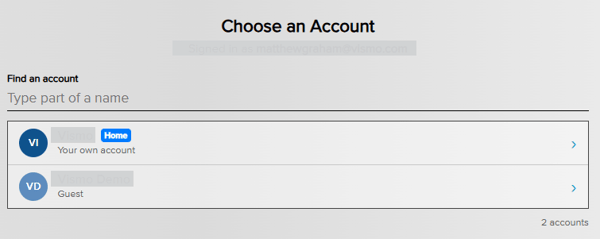
- It appears at every new sign-in. There is currently no option to remember your choice.
- Sign in as another user returns to the username page.
- A guest always signs in the way their home account requires, by password or single sign-on, even if the account they are a guest in uses single sign-on itself.
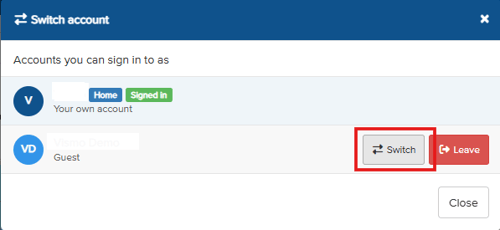
- Switch moves you straight into that account, without asking for your password again.
- Leave appears on accounts where you are a guest, never on your home account. After you confirm, it removes your guest user from that account. To return, you need a new invitation.
- Leaving the account you are signed in to signs you out afterwards. The dialog warns you first (Leave and sign out).
- Any waiting invitations are listed below your accounts, with Accept and Decline.
- You can change a guest's groups, permissions and other settings in your account.
- You can't change their name, email address, phone numbers or password. Their details page shows that these are managed by their home account, and Change Password is hidden. Changes made in their home account appear in your account automatically.
- A person can appear twice in your account if you already had an ordinary user for them before inviting them as a guest. These are separate users with separate groups and permissions.
- A guest uses one of the inviting account's licences.
- Invitations expire after 14 days. You can resend them from Pending guest invitations.
- The mobile app reports location, check-ins and alerts to the one account it is signed in to, so a person shares their location with one account at a time.
- Signing the app in to another account ends tracking in the previous one. Their home account shows them as not tracked until they sign back in to it.
- To change account in the app, sign out and sign in again, choosing the other account. The app stays in the chosen account until it is signed out.
- A guest's profile picture is not currently shown in the accounts they are a guest in.
Inviting a guest
|
Step |
What to do |
|
1 |
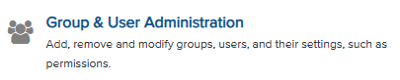
Open Group & User Administration. |
|
2 |
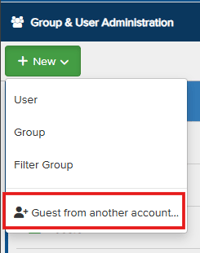
Choose New ▾, then Guest from another account… |
|
3 |
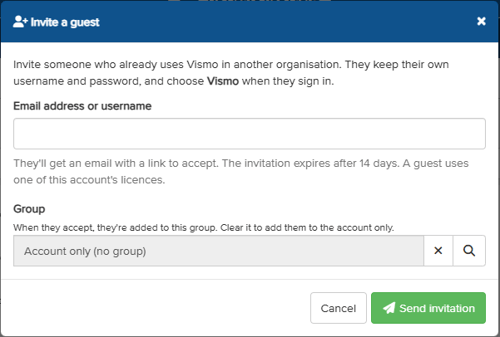
Enter the person's Email address or username. |
|
4 |
Check the Group. It starts as the group selected in the tree, and the guest joins this group when they accept. Clear it to add them to the account only. |
|
5 |
Choose Send invitation. The dialog confirms who the invitation went to, their home account and the group they will join. Choose Invite another to invite someone else. |
If the invitation can't be sent
|
Message in the dialog |
What it means |
|
We couldn't find a Vismo user with that email address or username. |
No user matches. Check the spelling. Usernames are usually, but not always, the person's email address. For privacy, the message never says more than this. |
|
{Name} is already a user of this account. |
This is their home account, so they don't need an invitation. |
|
{Name} is already a guest of this account. |
They have already accepted an earlier invitation. Look for the Guest label in the user list. |
|
{Name} can't be invited as a guest. |
This user can't be a guest, for example a standalone device user. |
|
{Name} already has an invitation waiting, sent {date}. |
An invitation is still open. The button changes to Resend invitation. |
Managing pending invitations
While any invitations are waiting, Pending guest invitations appears at the foot of the group tree with a count. It shows who each invitation is for, their home account, the group they will join, who sent it and when it expires.
|
Step |
What to do |
|
1 |
In Group & User Administration, select Pending guest invitations at the foot of the group tree. |
|
2 |
Select an invitation. |
|
3 |
Choose Resend to email the invitation again with a fresh 14-day expiry, or Revoke to withdraw it. A revoked invitation link stops working, and the person can be invited again later. |

Invitations past their expiry date are labelled Expired. Pending guest invitations disappears from the tree once nothing is waiting.
Accepting an invitation
The invited person receives an email naming who invited them, the account and the expiry date.
|
Step |
What to do |
|
1 |
In the invitation email, choose View invitation. |
|
2 |
If asked, sign in with your own Vismo username and password. |
|
3 |
Read the invitation page. It explains that you keep your own sign-in, and that the inviting account can see your location while your app is signed in to it. Choose Accept invitation, or Decline. |
|
4 |
After accepting, choose Switch now to go straight into the new account without signing in again, or Stay in {account} to remain where you are. The new account is in your list from then on. |
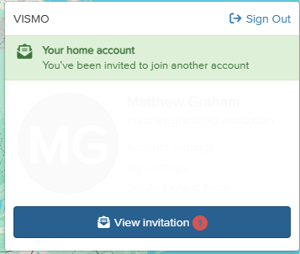
No email? Waiting invitations also appear in the portal. The user menu (the person icon, top right) shows a View invitation button with a red count, which opens a list with Accept and Decline.
Choosing and switching accounts
Anyone with access to more than one account sees Choose an Account after entering their password, or after single sign-on. Their home account is listed first, marked Home, followed by the accounts they are a guest in. Use Find an account to filter the list.
To check which account you are in, open the user menu (the person icon, top right). A strip under the account name is green in your home account, and blue in an account where you are a guest, naming your home account.
To move between accounts, choose Switch account from the user menu. The account you are in is marked Signed in.
Managing guests in your account
Guest users show a Guest label next to their name in Group & User Administration, User Administration and the user pickers. Hover over the label to see their home account.
Removing a guest
|
Step |
What to do |
|
1 |
In Group & User Administration, select the guest. The panel at the bottom shows their Home account. |
|
2 |
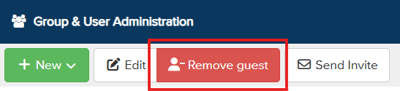
Choose Remove guest in the toolbar (it replaces Delete for guest users). |
|
3 |
Confirm. Their groups, permissions and settings in your account are removed. Their home account is untouched, and they can be invited again later. |
Good to know Troubleshooting / FAQs
|
Question |
Answer |
|
The invitation email never arrived. |
Ask the person to check their junk folder, and check that the email address on their home user is correct. An administrator can resend it from Pending guest invitations. The person can also accept from View invitation in the user menu. |
|
The link says “This invitation has expired or been withdrawn.” |
The invitation is over 14 days old, was revoked or was declined. Ask the inviting administrator to send a new one. |
|
The link says “This invitation is for a different Vismo user.” |
You are signed in as someone else, which often happens on a shared computer. Choose Sign out, open the link again and sign in as the person the invitation was sent to. |
|
The link says “This invitation link isn't valid.” |
The link is incomplete or wrong. Use View invitation in the user menu, or ask for the invitation to be resent. |
|
The page says “You've already accepted this invitation.” |
Nothing to do. The account is already in your list, and Switch now takes you to it. |
|
The page says “You're already a user of {account}.” |
It is your home account, so there is nothing to accept. |
|
Guest from another account is missing from the New menu. |
You are not an account administrator. Ask an account administrator to send the invitation. |
|
A guest can't change their name, email address or password. |
This is by design. Make the change in their home account; the guest user updates automatically. |
|
The home account can't see the person's location. |
Their app is signed in to the other account. Sign out of the app and sign in again, choosing the home account. |
|
I'm asked to choose an account at every sign-in. |
This is expected for anyone with more than one account. |
|
Our licence count went up. |
Each guest uses one of the inviting account's licences. Remove guests who no longer need access. |
|
Someone no longer wants to be a guest. |
They can choose Leave in the Switch account dialog, or an administrator can choose Remove guest. |
Need more help? Contact Vismo Support at techsupport@vismo.com.