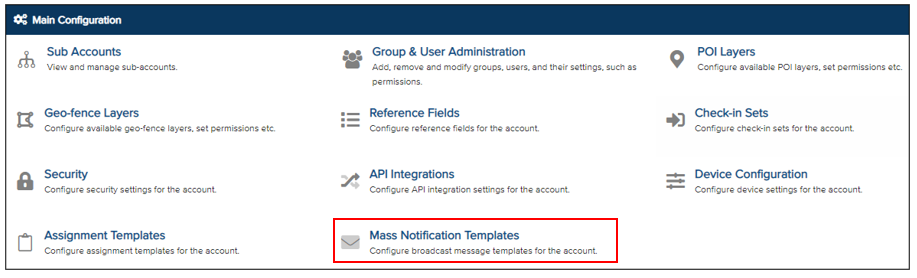
Vismo Mass Notifications allow organisations to quickly send important information to selected individuals, large groups, or people in specific geographic areas through multiple channels, including SMS, Email, In-App messages, Phone Calls, Slack, and Teams. Templates let you preconfigure the Mass Notification message for faster deployment. From the Main Configuration page, select ‘Mass Notification Templates’. If this option is not visible, please ensure you have the correct permissions.
The Broadcast Message Templates page will be displayed, showing any existing configured templates.
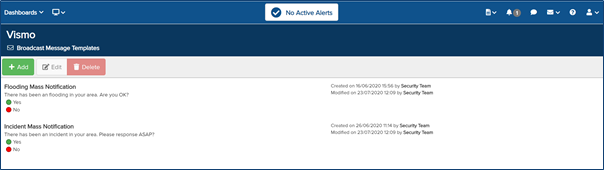
Click ‘Add’ at the top of the page to create a new Broadcast Message Template.

The Broadcast Message Template page will be displayed. Complete the required fields in the same way as when sending a Mass Notification.
General
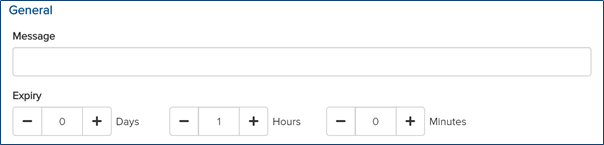
- Message – Enter the required message in the text box.
- Expiry – Specify how long the message will be available to users. Note: The maximum duration is 1 day.
Message Options
Message Options allow administrators to add predefined response choices, enabling employees to quickly and accurately acknowledge and respond to the Mass Notification with their current safety status. Switch Use Options to On.
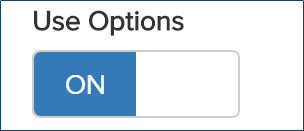
This will display the Message Options functions. Click New to add a new message option.

A Message Options box will appear. Enter the desired message response in the text box and select the appropriate level for the message: Auto, Positive, Neutral, or Negative.
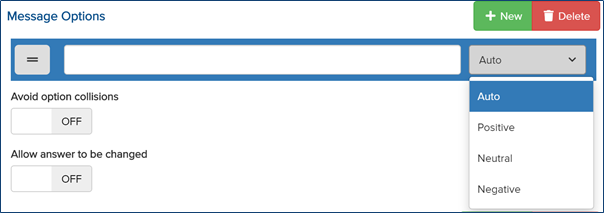
Repeat this process to add as many message options as needed. To remove a message option, click on Delete.
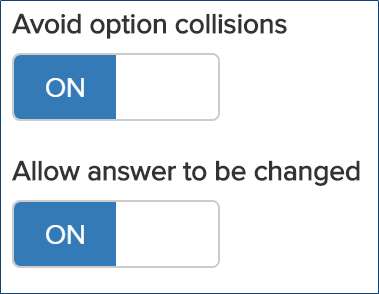
- Avoid Option Collisions – Ensures that message options do not conflict with each other if multiple Mass Notifications are sent within a short timeframe.
- Allow Answer to Be Changed – Allows users to update their response if they have already replied.
Message Send Strategy
The message send strategy allows you to select the channels through which the message will be delivered. Click New to add a send strategy and choose the preferred delivery method from the drop-down menu. Options include SMS, Email, Phone Call, In-App, Slack, and Teams.
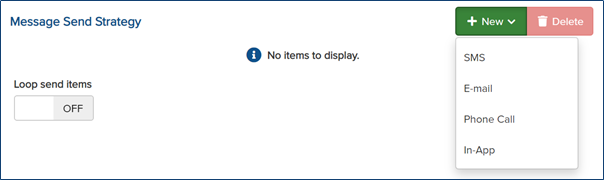
Add the desired message strategies and specify the order in which the messages should be sent. Notifications can be rearranged by clicking the = icon and dragging them into the preferred sequence.
Messages can be sent either simultaneously or in a cascade through each channel, which can be configured using Delay Before Next Step.
Saving the Template
Once the Broadcast Message Template has been configured, click Save at the top to confirm.