
When a user triggers a red flag alert, a notification will appear on the Vismo Portal at the top of the screen under ‘Active Alert.’ The number next to ‘Active Alert’ shows how many alerts require your attention. Click on ‘Active Alert’ to view the red flag alerts.
In this example, there is one active alert.

The Active Alerts page will be displayed.
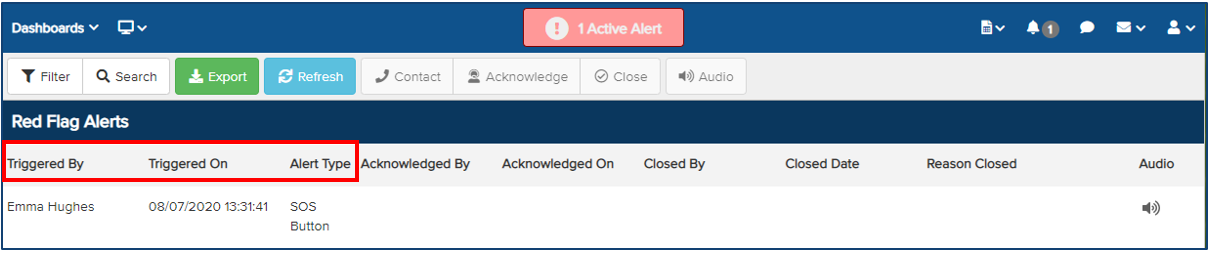
- Triggered By – Displays the user who activated the red flag/Panic alert.
- Triggered On – Shows the time the alert was triggered.
- Alert Type – The type of red flag alert that was activated.
There are two types of red flag alerts, each activated in a different way:
- SOS Button – Triggered when a user presses the red alert button.
- Assignment Check-in Missed – Triggered if a user fails to check in within the specified time frame while on an assignment.
Click on an alert until it is highlighted in blue to view the user’s last known location on the map.
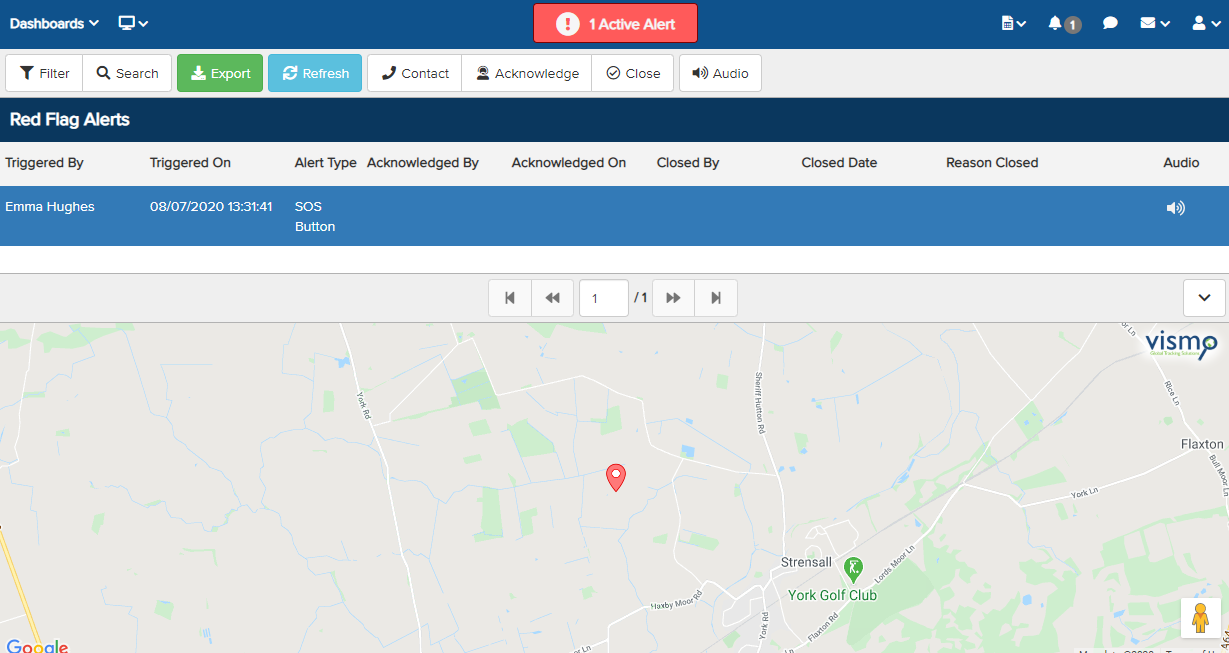
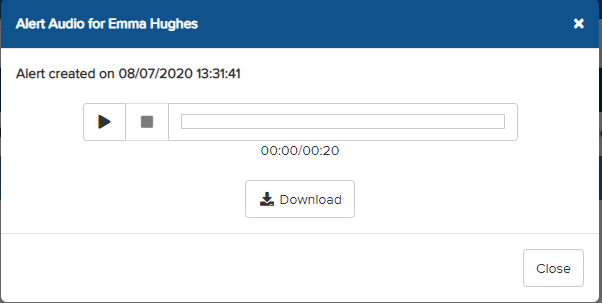
To listen to the covert audio recording, select the alert until it is highlighted in blue, then click the Audio button at the top of the screen.

A pop-up will appear with the audio clip. Click the Play button to listen, Download to save the clip, or Close to exit the audio recording.
To view additional details about the user, click the Contact button at the top of the screen.

Acknowledging the Active Alert
Clicking Acknowledge at the top will add your name to the Acknowledged By section.

This indicates to other Administrators that you are handling the red flag alert and also notifies the user who triggered the alert that you have acknowledged it. The Active Alert at the top will change to amber.
 In this example, the Security Team is handling the red flag alert. Acknowledged On shows the time the administrator acknowledged the alert and began managing it.
Closing an Active Alert
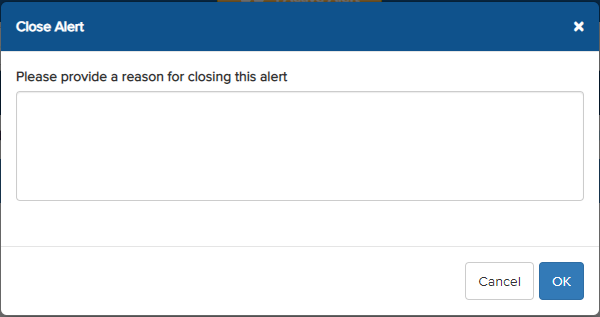
To close a red flag alert, click Close at the top.

A pop-up will prompt you to enter a reason for closing the alert. Enter your reason and click OK. The user who triggered the alert will be automatically notified that their alert has been closed.
Managing Red Alerts Using an Escalation Tree
Red alerts can also be managed via an escalation tree, where Points of Contact (PoCs) are contacted in a specific sequence rather than the alert being sent to all members of a group.