
This guide explains how to set up an intelligence area event on a group in the Vismo Portal, so that the people you choose are told when risk intelligence affects your people. It also covers what each setting does, the notification e-mails the event sends, and how to check what happened in Previous Events.
What an intelligence area event does
Vismo receives risk intelligence from the intelligence providers your account is licensed for, as well as any intelligence your account creates itself. Each intelligence item covers an area on the map, either an outline or a single point.
An intelligence area event connects that intelligence to a group of people. When people in the group are affected, Vismo notifies the recipients you choose and records what happened in Previous Events. The event can also raise an alert on the Alerts page, so that an operator can see who is affected, message them, and acknowledge and close the situation.
|
Trigger |
When it happens |
Alert it can raise |
|
Reported |
New intelligence is reported over people who are already inside its area. One notification covers everyone affected and gives the number of people. |
Intelligence Area Alert (one per intelligence item) |
|
Entered |
A person moves into the area of current intelligence. |
Intelligence Entry/Exit Alert (one per person) |
|
Left |
A person moves out of the area. |
Intelligence Entry/Exit Alert (one per person) |
|
Ended |
The intelligence ends (the provider withdraws it) while people are still inside its area. |
None: an ended notification never raises an alert |
An event is set up on a group and covers the people in that group. Different groups can have different settings, for example High risk and above for most staff, but every risk level for a team working in a volatile region. Nothing changes for your account until an event is set up on one of your groups.
Before you start
- Your account receives intelligence, either from one or more licensed intelligence providers or created by your account itself. Events only react to intelligence your account receives.
- The people you want to protect are in a group. The event covers the members of the group it is set up on; people who are not in the group are not counted.
- Your people are being located. Vismo works from people's latest known locations, usually from the Vismo mobile app. Someone who has not been located recently cannot be placed inside an area.
- You can edit the group in Group & User Administration.
- Anyone who will work with the resulting alerts has the View Red Flag Alerts permission over the people affected.
- Operators who use the Vismo Monitor app have version 3.1.1 or later. Older versions receive the notifications but cannot open the alerts.
Agree recipients and methods before switching an event on. Notifications are real messages, and a single reported notification can cover many people, sometimes hundreds. SMS and voice call notifications are charged and reach real phones, so e-mail or in-app notifications are a sensible default.
Set up an intelligence area event
These steps create an event for one group. Repeat them for each group that needs its own settings.
|
Step |
What to do |
|
1 |
Open the user menu at the top right of the portal and choose Account Settings. |
|
2 |
On the Main Configuration page, choose Group & User Administration. |
|
3 |
Select the group in the tree on the left, then choose Edit on the toolbar. |
|
4 |
On the Edit group page, scroll down to the Events section and choose its Edit button. This opens the list of the group's events. |
|
5 |
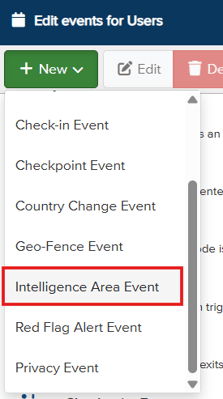
Choose New, then Intelligence Area Event. |
|
6 |
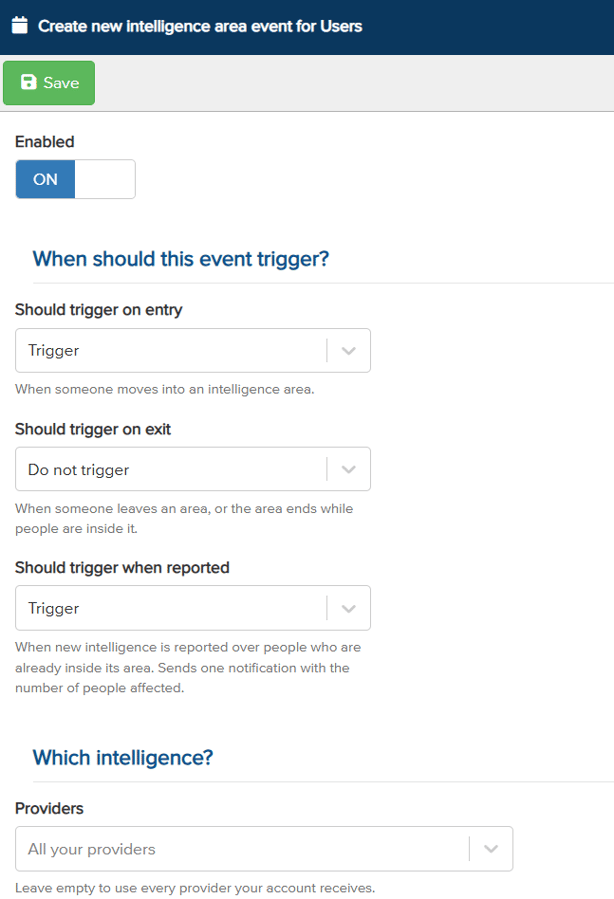
Under When should this event trigger?, choose what each kind of change should do: Do not trigger, Trigger or Trigger and raise alert. The text under each setting describes it. |
|
7 |
Under Which intelligence?, choose the Providers to listen to and the Minimum risk level. Leave Providers empty, shown as All your providers, to use every provider your account receives. Only intelligence at the minimum risk level or above triggers the event. |
|
8 |
Check that Enabled is ON, then choose Save. The event appears in the group's list with a summary of its settings. |
|
9 |
With the event selected, choose Recipients. Choose New to add a row, pick a user or group, and switch on the methods to use: SMS/Text, E-mail, Voice Call or In-App. Choose Save. |

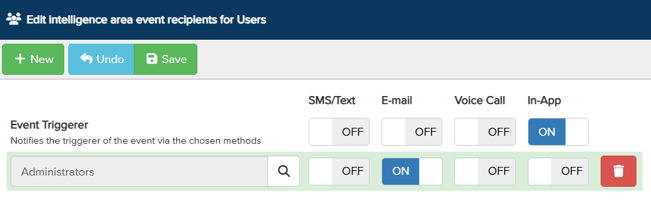
The Event Triggerer option notifies the person whose movement triggered the event. Leave it off unless the travellers themselves should be told.
What each setting does
|
Setting |
What it does |
Default |
|
Enabled |
Switches the whole event on or off without losing its settings. |
ON |
|
Should trigger on entry |
What happens when someone moves into an intelligence area. |
Trigger |
|
Should trigger on exit |
What happens when someone leaves an area, or when the intelligence ends while people are inside it. |
Do not trigger |
|
Should trigger when reported |
What happens when new intelligence is reported over people who are already inside its area. Sends one notification with the number of people affected. |
Trigger |
|
Providers |
Which providers' intelligence counts. Empty (All your providers) means every provider your account receives. |
All your providers |
|
Minimum risk level |
The lowest risk level that counts: Low, Moderate, Medium, High or Extreme. |
High |
Each trigger offers three choices:
|
Choice |
Result |
|
Do not trigger |
Nothing happens for this kind of change. |
|
Trigger |
The recipients are notified and the event is recorded in Previous Events. |
|
Trigger and raise alert |
As Trigger, and an alert is also raised on the Alerts page: an Intelligence Area Alert for reported intelligence, or an Intelligence Entry/Exit Alert for a person entering or leaving. |
Ended notifications follow the exit setting. An ended notification is sent when Should trigger on exit is set to anything other than Do not trigger. It never raises an alert, even when the exit setting says Trigger and raise alert, because the intelligence has ended and there is nothing new to respond to.
If you are not sure where to start, these combinations suit common needs:
|
Your need |
Suggested settings |
|
Awareness only |
Entry: Trigger. Reported: Trigger. Exit: Do not trigger. Minimum risk: High. Recipients by e-mail. |
|
Active monitoring by an operations team |
Entry and Reported: Trigger and raise alert. Exit: Trigger. Minimum risk: High. Operations team by e-mail, with alert viewers holding View Red Flag Alerts. |
|
High-risk deployment |
As active monitoring, with Minimum risk: Medium and the providers you trust for that region. |
The notification e-mails
Each kind of notification has its own e-mail, sent from noreply@vismo.com. The subject line says what happened, and all times in the e-mails are in Coordinated Universal Time (UTC).
- The Intelligence Reported e-mail is sent once when new intelligence is reported over people already inside its area. It gives a summary, the details (date and time, intelligence area, risk level, provider, category and the number of people affected), a View in the Vismo portal link, and road and satellite maps. The area is outlined in red, and each blue circle is a group of people last located nearby, numbered with how many people it holds.
- The Person Entered an Area e-mail is sent when a person moves into an intelligence area. It gives the person and the intelligence (risk level, provider and category), their current and previous locations with times, positions and addresses, and road and satellite maps showing the move with the intelligence area outlined.
- The Person Left an Area e-mail is sent when a person leaves an intelligence area, and has the same layout as the entered e-mail.
- The Intelligence Ended e-mail is sent when intelligence ends while people are still inside its area. Like the reported e-mail, it gives the details, a View in the Vismo portal link, and maps with the area outlined and the people inside grouped by location.
On entered and left e-mails, an area wider than 500 km is not outlined, so that the map stays zoomed in on the person's move. The intelligence still applies to the whole area.
Check previous events
Every notification is recorded in Previous Events, whether or not anyone was messaged. Use it to see what happened and when, for example to find out why someone was, or was not, notified.
|
Step |
What to do |
|
1 |
Open the apps grid at the top right of the portal and choose Reports. |
|
2 |
Choose Previous Events. The list shows the newest events first. Intelligence events show who entered or left which area, or how many people were affected by reported intelligence. Use Filter to narrow the list. |
|
3 |
Select an event to see its details. A reported event shows the area and the grouped people on the map, the intelligence details and the list of people affected. An entered or left event shows the person's move on the map with the previous and current locations. |
Timings and rules
These rules explain most "why did this happen?" questions.
|
Rule |
Detail |
|
Latest known locations |
Vismo works from people's latest known locations. An intelligence area event does not change how often the Vismo app sends locations; it uses the locations the app already sends. Faster location updates only happen during a panic alert raised from the app, using the red alert button or a Flic button. |
|
Point intelligence |
Intelligence given as a single point, rather than an outline, counts as a circle with a 10 km radius around that point. |
|
New intelligence and entries |
New intelligence starts counting for entries about 3 minutes after Vismo receives it. Someone who moves into the area in those first minutes may not get an entered notification. People already inside when it is reported are covered by the reported notification. |
|
Leaving an area |
A person counts as having left after their second location outside the area. One stray location does not cause a false exit, so the left notification can follow a little after the move. |
|
Who counts as inside when reported |
People whose latest location is inside the area and is from the last 6 hours. People located longer ago are not counted, because Vismo cannot be confident where they are now. |
|
Ended |
Sent about 15 minutes after the provider withdraws the intelligence, if people were still inside. It needs Should trigger on exit to be set, and never raises an alert. |
|
Filters |
Only intelligence from the chosen providers, at or above the minimum risk level, triggers the event. |
|
Area alerts |
One open Intelligence Area Alert per intelligence item for your account. |
|
Entry/exit alerts |
One open Intelligence Entry/Exit Alert per person; repeat movements are added to it. |
|
Times |
E-mails show times in UTC. |
Good to know
- An event with no recipients still records what happens in Previous Events, and still raises alerts where a setting says Trigger and raise alert. Nobody is messaged.
- The Providers list shows only the intelligence providers your account is licensed for. Custom intelligence appears only for accounts licensed for it.
- If an existing event uses a provider your account no longer has, the provider stays on the event marked "(not licensed)", so an administrator can see it and remove it. Nothing is dropped silently.
- Guest administrators editing another account's groups see that account's providers, not their own.
Troubleshooting / FAQs
|
Question or symptom |
What to check |
|
No notifications at all |
Check that the event is Enabled and the relevant trigger is not Do not trigger; that the event has recipients with at least one method switched on; that the intelligence's risk level is at or above the minimum and its provider is selected (or Providers is empty); and that the person is a member of the group the event is set up on. If the event is listed in Previous Events, the trigger worked and the question is about recipients or delivery. |
|
Fewer people reported than expected |
Only people located inside the area in the last 6 hours are counted, and only members of the event's group. |
|
No entered notification for someone already in a brand-new area |
Intelligence counts for entries about 3 minutes after it arrives. Someone already inside when it is reported is covered by the reported notification instead. |
|
The left notification arrives later than the move |
This is expected: a person counts as having left on their second location outside the area. |
|
A notification was sent, but no alert was raised |
The setting is Trigger rather than Trigger and raise alert. Ended notifications never raise alerts. |
|
No ended notification |
Should trigger on exit is set to Do not trigger, nobody was inside when the intelligence ended, or the 15 minutes after withdrawal have not yet passed. |
|
The map in the e-mail has no outline |
The area is wider than 500 km (entered and left e-mails only). |
|
Times in the e-mail look wrong |
E-mail times are in UTC. |
|
Does an event make the app send locations more often? |
No. Intelligence area events and their alerts use the locations the app already sends. Faster updates only happen during a panic alert. |
Need more help? Contact Vismo Support at techsupport@vismo.com.