
This guide explains how to see how long each workflow and each step took, whether they met their time limits, and who completed each step.
Workflows guide an operator through a response step by step, for example acknowledging a red flag alert, calling the person, trying their emergency contacts and sending help. Each workflow, and each step within it, can be given a time limit. The Vismo Portal now times every workflow and every step automatically, compares them with their time limits and records who completed each step. Operators run workflows exactly as before.
Before you start
- Administrators can see timings, reports, the summary and exports for every workflow in their account.
- Other users can see them only for the workflows they are running themselves.
- Time limits are set when a workflow is designed.
Understanding time limits
There are two kinds of time limit:
- Workflow time limit: the whole workflow, from the moment it starts until it finishes. For example, a red flag alert response should be dealt with within one hour.
- Step time limit: a single step, counted either from when the previous step finished (for example, "call the person" within ten minutes of acknowledging the alert) or from when the whole workflow started (for example, "help sent" within 45 minutes of the alert, however long the earlier steps took).
Time limits are targets, not cut-offs. Going over a time limit is reported but never enforced: nothing is stopped, skipped or escalated because a limit has passed.
What the colours mean
|
Status |
Meaning |
|
Within limit (green) |
Finished within its time limit, or still running and not yet close to it. |
|
Due soon (amber) |
Still running, and within five minutes of its time limit. |
|
Over time limit (red) |
Finished after its time limit ("over by"), or still running past it ("overdue by"). |
|
No time limit |
No limit was set. These are left out of every percentage. |
Viewing timings on a workflow
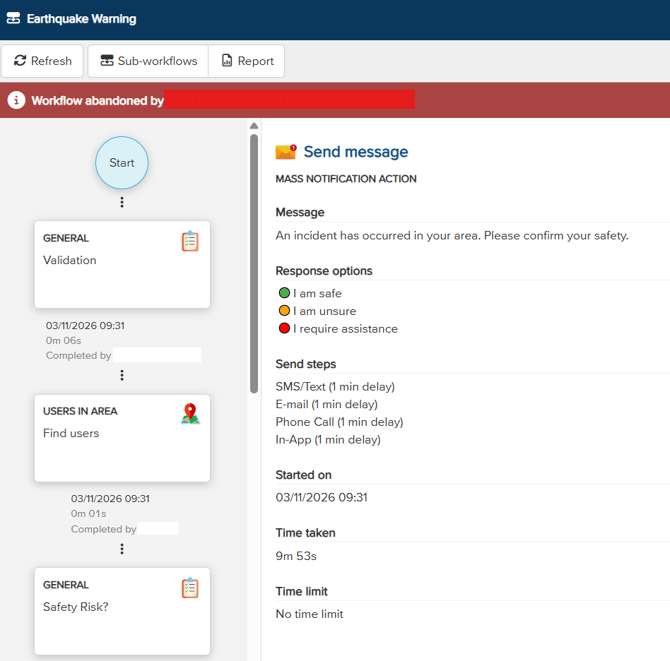
- Open the All triggered workflows list. Account Settings > Workflows.
- Open the workflow you want to review.
- The line at the top of the workflow page shows the workflow's time limit and where it stands.
- Under each step, check how long it took, how far over its limit it went (shown in red) and who completed it. Select a step to see when it was due.
- While a workflow is running, the current step counts up live with "due in", "due soon" or "overdue by", without refreshing the page.
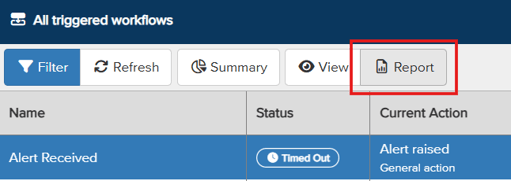
Opening the workflow report
- On the All triggered workflows list, select a finished workflow and click Report. You can also click the Report button on a finished workflow's own page.
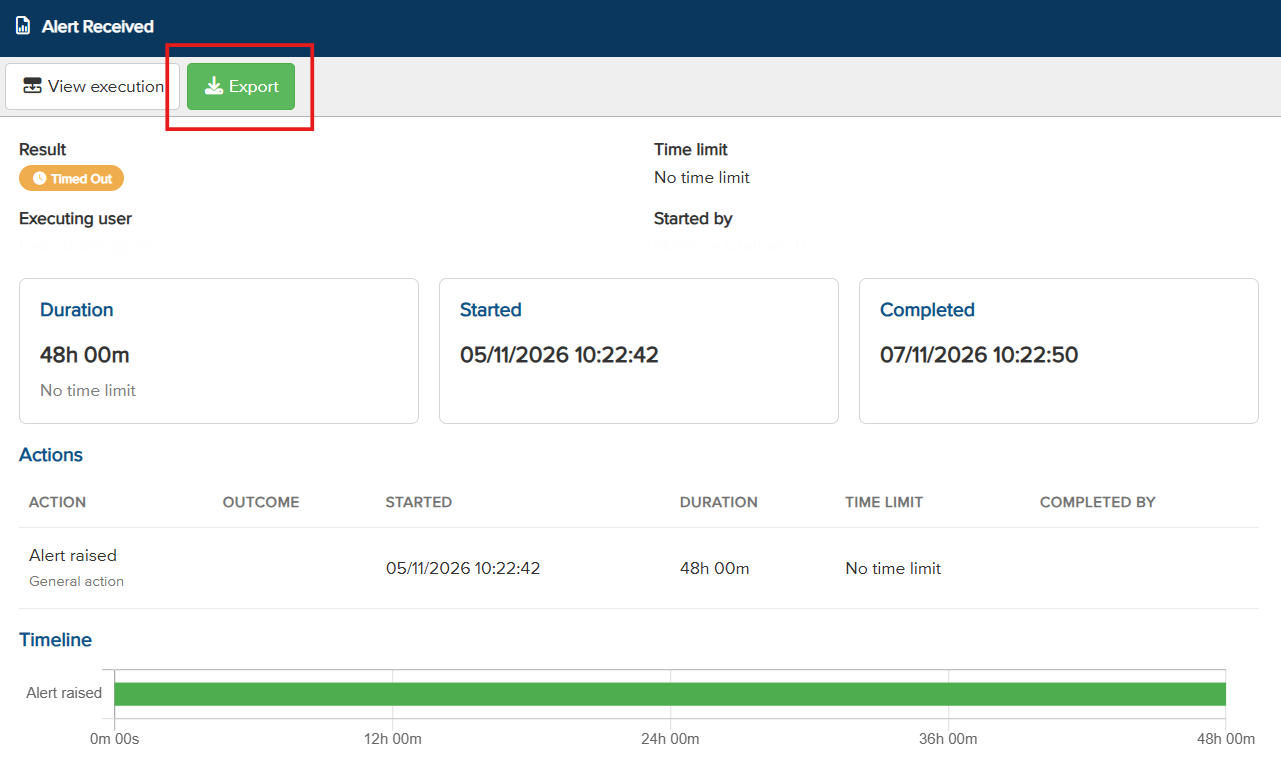
- Review the headline, which shows the time limit marked "Within limit" in green or "Over by" in red.
- Review the Actions section, which lists each step's start, duration, time limit and who completed it. A time in red went over its limit.
- Review the Timeline, which shows a bar per step: green within its limit and red over. A tick marks when each step was due, and a dashed line marks when the whole workflow was due.
Viewing the summary screen
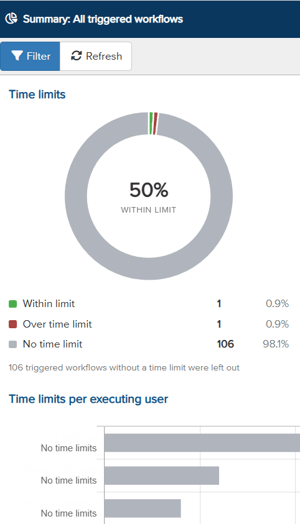
- On the All triggered workflows list, click Summary.
- Filter by date range, workflow group, workflow, person or result.
- The ring splits workflows into within limit, over time limit and no time limit, with the percentage within limit in the centre.
- The bars show the same figures per person, each with their own percentage within limit.
Exporting to a spreadsheet
- Open the report for the workflow. Highlight the workflow and click on Report in the toolbar.
- Click Export. A CSV file downloads that opens in Excel.
The export has one row per step, with its start, finish, duration, time limit, when it was due, how far over or under it was, its outcome and who completed it, alongside the workflow's own result and time limit. Times are shown in your own time zone.
Good to know
- Times under an hour show minutes and seconds (for example 43m 55s); from an hour up, they show hours and minutes (for example 1h 12m).
- The time limit used is the one in force when the workflow ran. Changing a workflow's time limit later does not change earlier runs.
- "Over time limit" is not the same as "timed out". Timed out is the existing 48-hour safety stop for a workflow that was never finished; over time limit simply means it took longer than its target.
- Workflows without a time limit are left out of every percentage, so they never count for or against anyone.
Need more help? Contact Vismo Support at techsupport@vismo.com.